Assistive Technology
Text-to-Speech for Reading: Settings Worth Testing
Choose a reading task, test one setting at a time and check that the spoken output preserves the meaning.
Archive edition: 29 August 2026 · assigned for archive organisation

Text-to-speech turns readable digital text into spoken output. It can be useful to explore when a person wants to listen, follow along visually or revisit a passage without reading it in the same way each time. Whether it helps depends on the material, controls, voice and reader’s preferences.
Start with a device you already have and a short, non-sensitive passage. This guide compares documented starting points and offers a practical trial worksheet. It does not claim that the tools improve learning for everyone or that the publication has tested every device, voice and file format.
At a glance
- Choose the reading task before choosing the tool.
- Test voice, pace, highlighting and navigation separately.
- Check that the important text is read accurately and in a useful order.
- Keep a way to pause, review the original and return to your place.
Choose a reading task
“Use text-to-speech” is less specific than “Listen to a short article while following the paragraph on screen.” Other goals might include checking written instructions, hearing a draft sentence or reading a longer document in sections. Different tasks require different controls.
Ask the reader whether they want the whole page, a selected passage or a single sentence. A tool that reads navigation menus before reaching the article may be inconvenient for one task and useful for another. Note the intended material and the app in which it is normally opened.
Begin with a passage the reader can check. Include a heading, a short paragraph and any important feature such as a list. A plain passage helps separate the voice settings from problems caused by a complicated page or inaccessible file.
Documented starting points
The following paths were checked in official documentation on 21 October 2026. Labels and availability depend on the device, software version and organisation’s settings. Use the version selector or manufacturer help if the menu on your device differs.
| Platform | Documented starting point | What to try |
|---|---|---|
| iPhone | Settings → Accessibility → Read & Speak in the current guide. | Speak Selection or Speak Screen, then voice, rate and highlighting. |
| Android | Settings → Accessibility → Select to Speak; availability varies. | Select an item or passage and try playback and speed controls. |
| Microsoft Edge on a computer | Reading mode on a supported page → Read aloud. | Pause, move between paragraphs and adjust Voice options. |
Apple’s current iPhone guide distinguishes speaking selected text from speaking the screen and describes voice, language and pronunciation controls. Read Apple’s instructions for spoken text. A reader can explore the relevant option without assuming that they need to turn on VoiceOver.
Google documents Select to Speak and a separate selected-text Read aloud option in supported apps and webpages. It notes that some steps require Android 11 or later and that Accessibility Suite may need updating if Select to Speak is absent. Read Google’s Select to Speak guide.
Microsoft documents Read aloud within Edge’s Reading mode, including playback, paragraph navigation, voice and speed controls. Reading mode is available on supported webpages. Read Microsoft’s current Reading mode guide. Its optional interactive features are separate decisions from simply listening to text.
Test one setting at a time
First check that playback starts where intended and can be paused easily. Then compare one voice or pace change using the same passage. Changing several settings and the material at once makes it harder to identify what improved the experience.
Ask the reader to describe the difference in practical terms: “I lost my place after the heading,” “The pauses felt too long,” or “I could return to the sentence I wanted.” A preferred setting is not necessarily the fastest one. Finishing a passage quickly is not the only useful outcome.
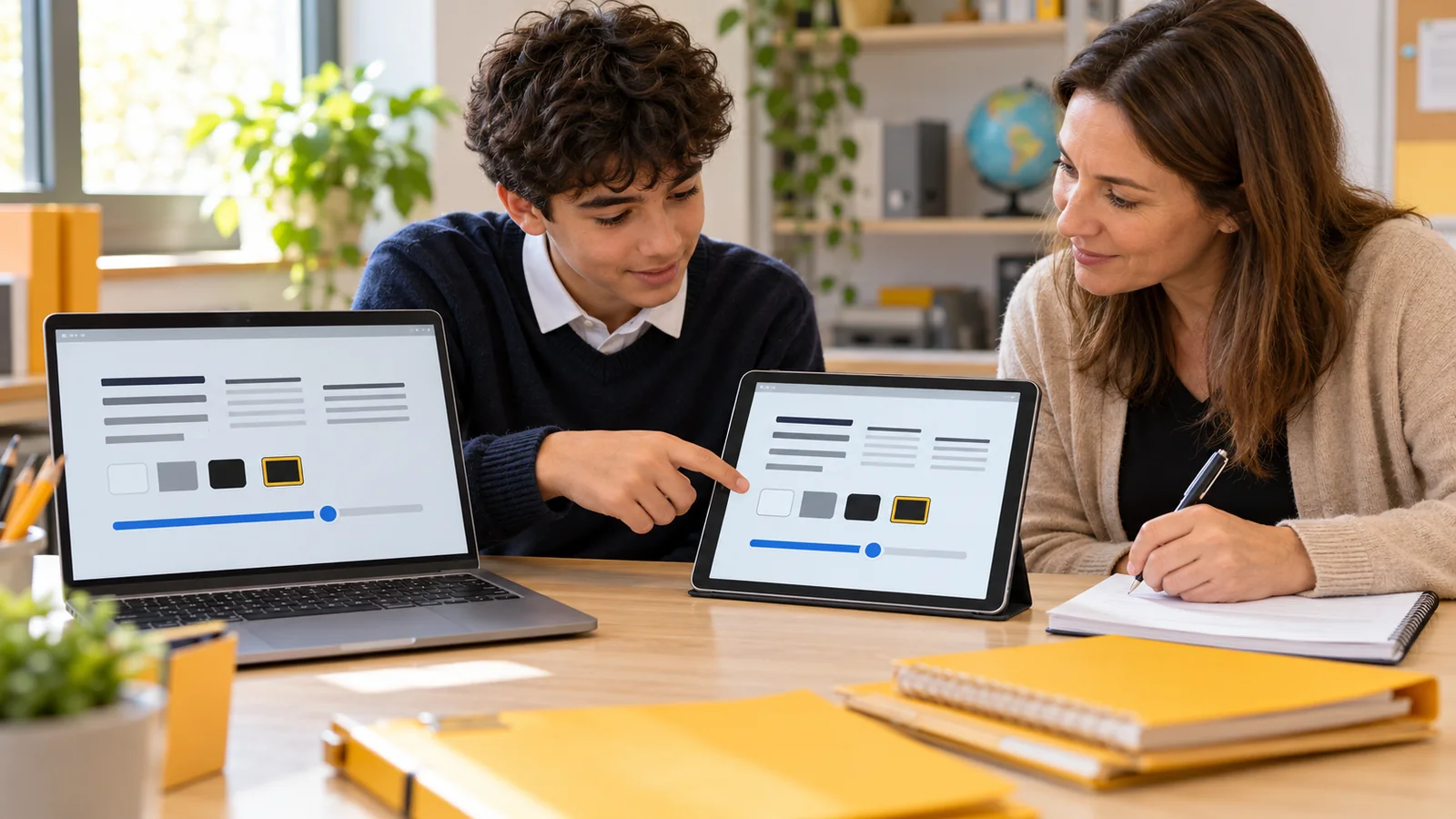
If highlighting is available, try it both on and off. Check whether it follows the spoken text accurately and whether the contrast is comfortable. Someone may prefer listening without moving highlights, while another may find a visible reading position useful.
Check the text as well as the voice
Listen for omitted words, repeated sections and an unexpected order. A page may contain sidebars, captions and navigation that do not form part of the intended passage. A document that looks like text may instead contain a scanned image. Check what the tool can actually access before concluding that the reader has difficulty using it.
Names, abbreviations, symbols and mixed-language passages deserve a separate check. A clear-sounding voice can still pronounce something incorrectly. For important instructions, return to the original wording and obtain clarification if the meaning remains uncertain.
Do not assume a fluent reading of a table conveys the relationship between its rows and columns. Compare the spoken output with the visual structure or an accessible alternative. The relevant question is whether the information remains understandable in the format being used.
Make the trial repeatable
- Select. Choose a real reading task and a short passage that can be checked.
- Compare. Change one setting and ask the reader what became easier or harder.
- Record. Note the useful settings, material limitations and how to start and stop again.
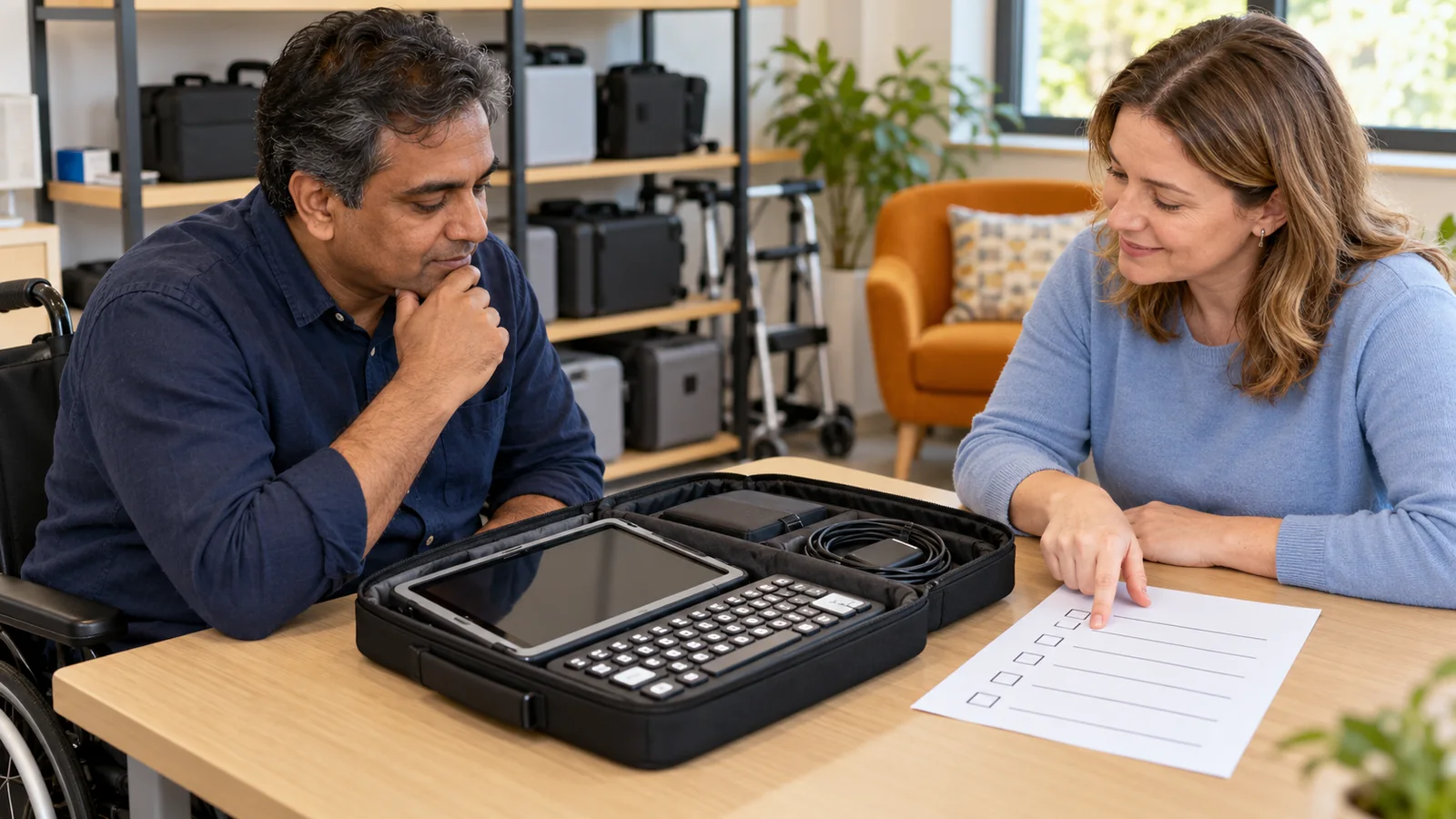
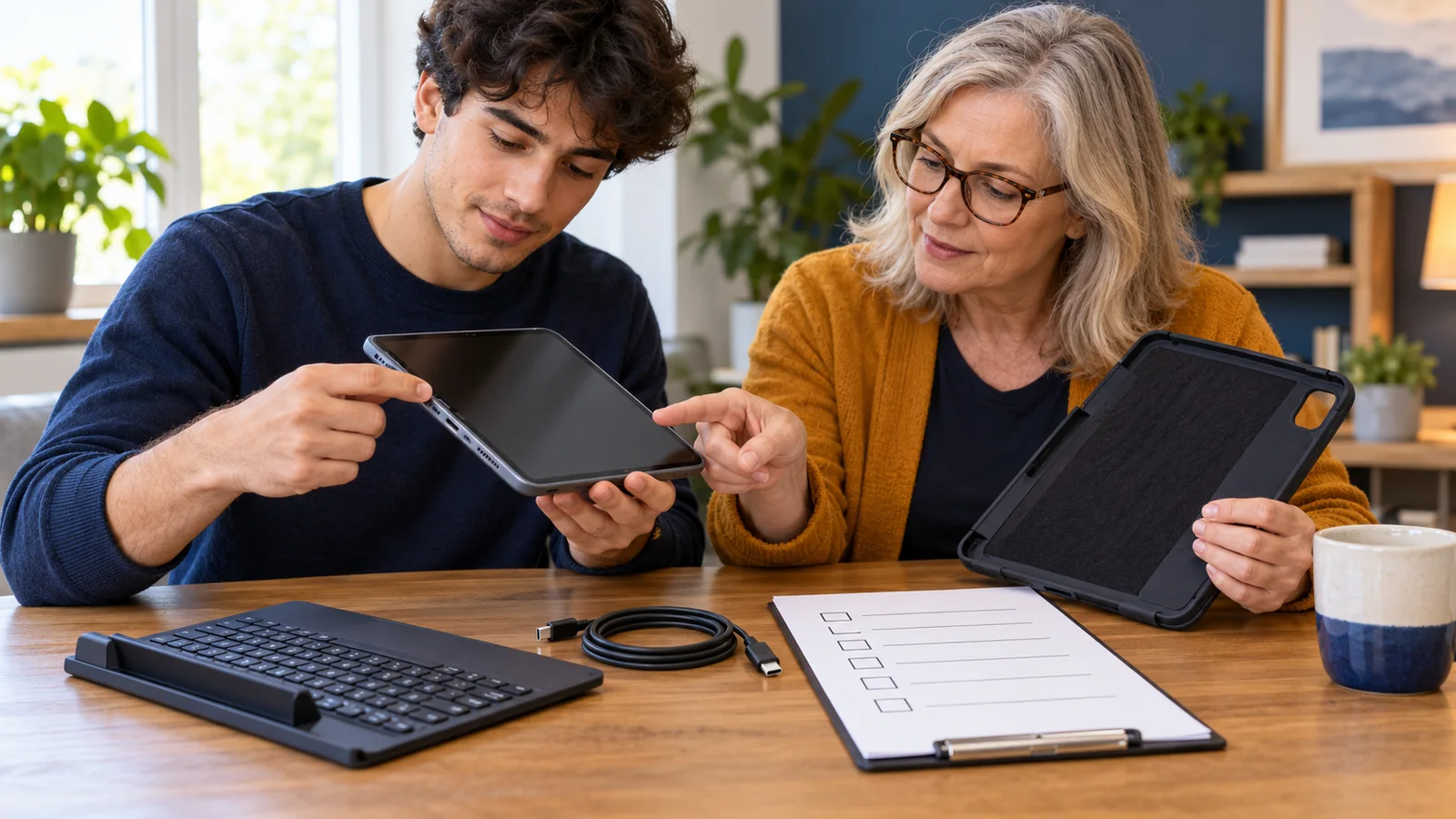
A simple trial note can include the device and software version, app, passage type, chosen settings and one observation. Avoid recording private documents merely to demonstrate a feature. On school or workplace devices, confirm which tools and materials are approved before trying optional online services.
For example, a learner may find that selected-text playback works well for short instructions but that a long webpage reads unrelated navigation first. The next step might be selecting the relevant passage or obtaining a cleaner source document. Buying another app would not automatically solve the underlying material problem.
Test the ordinary setting in which the tool will be used. A useful desk trial should be followed by checking whether the reader can reach the controls, hear the output appropriately and return to their place in the actual reading activity. Keep the final choice with the person using it.
Common questions
Is text-to-speech the same as dictation?
No. This guide concerns hearing written text spoken aloud. Dictation turns spoken input into written text. Identify which direction the task requires before looking for a setting; a device may offer both features under different names.
Do I need a new app to begin?
Check the documented options already available on the device or browser first. They may be sufficient for the task, or their limitations may clarify what another tool would need to provide. This guide does not recommend a purchase or subscription.
What if the menu says something different?
Check the operating-system version and the vendor’s matching instructions. Device manufacturers and managed installations may present settings differently. Search the device settings for the feature name rather than assuming an older screenshot is an exact match.
Why does the voice read the wrong part of a page?
Inspect what was selected and how the page is structured. Try a short passage whose boundaries are clear. If the tool cannot identify the intended text reliably, obtain a more accessible version rather than repeatedly changing the voice.
Will it read every PDF?
Do not assume universal file support. Test the actual document and check whether its text is accessible and in a useful reading order. A scanned page and a properly structured text document can behave differently even when both have a PDF extension.
Which speaking speed is best?
Use the reader’s experience and the task to decide. Compare a small change on the same passage and check whether they can pause or revisit important information. A speed that suits familiar material may not suit new terminology.
Can it handle English and French in one document?
Check the relevant voice and language settings, then test a representative passage. Language detection and pronunciation can vary by tool and material. Confirm important names and terms against the original rather than relying only on how natural the voice sounds.
Does read-aloud guarantee better comprehension?
No guarantee is made here. Ask whether the tool helps with the reader’s specific task and whether the controls add effort. The vendor documentation establishes available features, not an individual learning outcome or a clinical benefit.
Can a student use it during an assessment?
Confirm the assessment rules and the student’s approved arrangements with the school. A feature being installed does not establish permission for every task. Clarify whether the assessment is measuring the skill that the tool changes or supports.
What should we save after a successful trial?
Record the feature name, useful settings, how to activate and stop it, and any material that did not work. Keep the note short enough for the reader or supporter to use later. Recheck after significant software or task changes.
Sources
Official documentation opened and checked on 21 October 2026. The Apple page displayed the current iOS guide; Android instructions contain version-specific limits. This is a documentation-based guide, not a cross-device performance test. The trial worksheet and learner example are original editorial material.