Assistive Technology
Keeping Accessibility Settings Consistent Across Home and School Devices
Document what supports access, then verify the actual task on each device.
Archive edition: 19 September 2026 · assigned for archive organisation
On this page
- At a glance
- Describe the working experience first
- Locate each setting in the right layer
- Make a compact access-settings record
- Understand what backup and sync actually cover
- Coordinate changes on managed devices
- Check the complete task after setup
- Plan for updates, repairs and replacements
- A practical example
- Common questions
- Sources and scope
A student may read comfortably on one device and struggle with the same material on another. The difference can come from system preferences, app settings, account restrictions, screen size or connected equipment. Keeping access consistent means preserving a usable experience, which does not always require identical settings on every screen.
This guide helps students, families and school teams document useful arrangements and check them across devices. It includes labelled examples from Microsoft, Google and Apple. It does not promise automatic transfer of every preference or authorize changes to a school-managed device.
Describe the working experience first
Ask the student what helps on the device they already use. A description such as “I can follow the paragraph when the text is larger and the page is uncluttered” is more useful than recording only a percentage or menu label. It explains the purpose of the adjustment.
Choose a short sample task that can be repeated on the other device, such as reading a paragraph, navigating headings or entering and correcting a response. Use material that does not expose private information when the team shares observations.
Include the student’s usual input and reading methods. A setup that looks similar to an adult may behave differently with a screen reader, keyboard, switch or magnification. The student’s ability to complete the task is the important comparison.
Locate each setting in the right layer
Identify whether the adjustment belongs to the operating system, browser, particular app, user account or external accessory. A change in one layer may not affect another. For example, an application’s own reading view may have separate controls from the device’s general display settings.
Apple’s iPad guide to per-app visual settings describes choosing different text, colour and motion settings for certain apps. This illustrates why a single system-level check may not explain how every application appears. Confirm the actual app and software version being used.
Record the path to a setting in plain language, along with its value and purpose. If names differ between platforms, describe the intended result rather than inventing an exact equivalent. A large laptop screen and a small tablet may need different values to provide comparable access.
Make a compact access-settings record
| Item | What to record | What to check elsewhere |
|---|---|---|
| Task | Reading, writing, communication or navigation goal | Whether the same activity is required |
| Device and version | Model and relevant software version | Available features and compatibility |
| System setting | Name, location, value and purpose | Equivalent usable result |
| App setting | Reading, display or input preferences | Whether the app uses its own controls |
| Account | Personal or managed context, without passwords | Administrator restrictions and permitted sync |
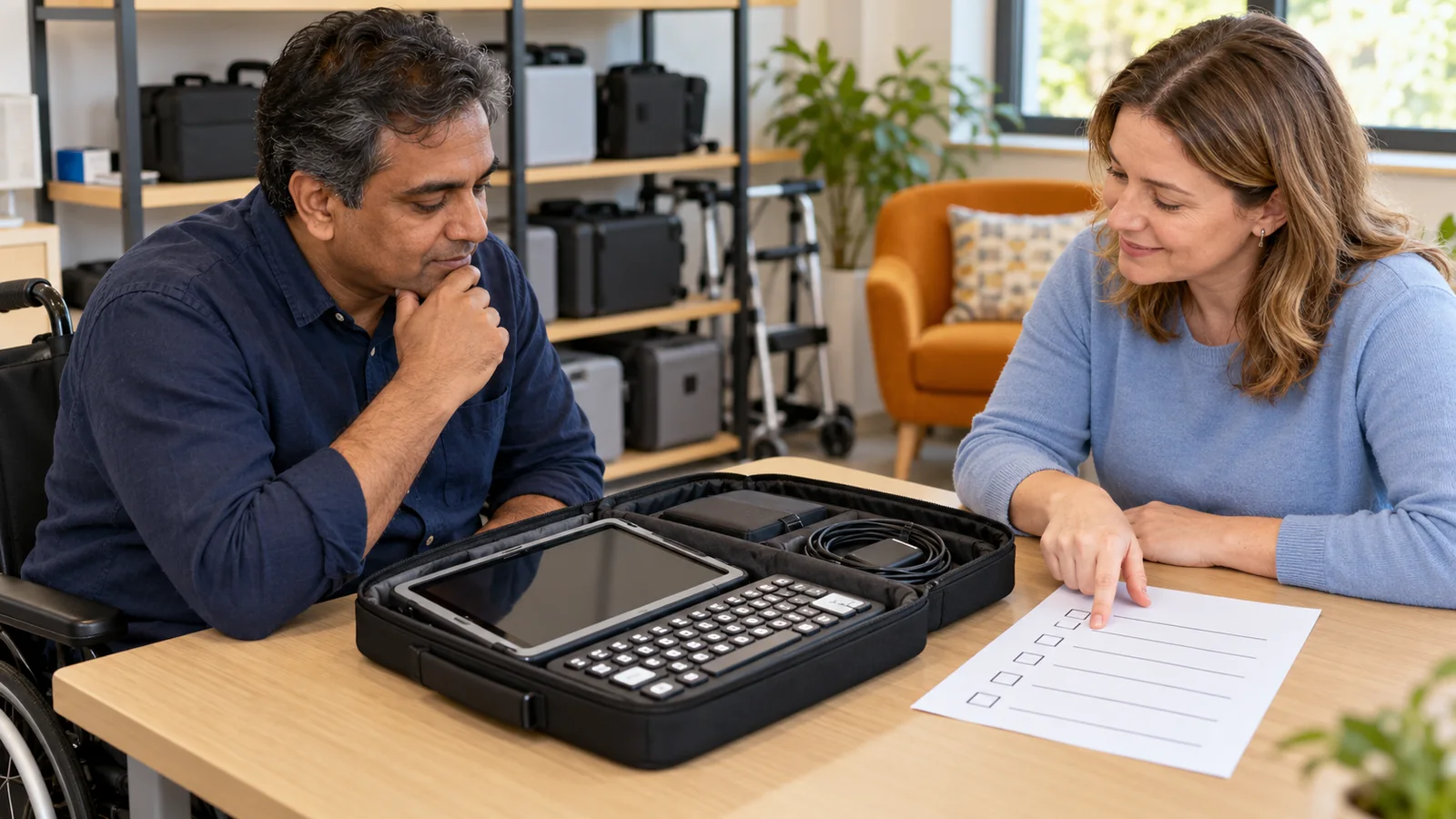
| Accessory | Keyboard, switch, audio or other input arrangement | Connection and actual operation |
Keep the record short enough to use during troubleshooting. It should not become a collection of every setting on the device. Include the important access choices and where to find further help.
Do not put passwords, recovery codes or unnecessary personal information into a shared settings sheet. If screenshots are helpful, crop or redact unrelated account details through an appropriate process before sharing them.
Understand what backup and sync actually cover
Microsoft’s Windows Backup guide includes accessibility among supported preference categories, while explaining account and configuration requirements. Its consumer backup app uses personal Microsoft accounts; organizational settings can follow different rules. Do not assume a school account and personal account provide the same transfer route.
Google’s Android backup guidance explains that restoration depends on the phone and Android version, and that not all apps back up or restore all settings and data. A completed device backup is therefore not proof that every access preference will reappear exactly as expected.
Ask which settings are included, where they are stored and which account controls them. Distinguish restoring a device backup from keeping an application’s content synchronized. Neither term should replace a check of the actual function the student relies on.
Coordinate changes on managed devices
Ask the school who can change restricted preferences or install required software. Give that person the task, the observed barrier and the setting that works elsewhere. This is more actionable than asking them to “make the devices the same.”
Do not connect a personal cloud account to a school device simply to copy settings without approval. Such a step may also bring personal files, browser information or other data into the school environment. Agree an authorized method with the responsible administrator.
If a preferred feature is unavailable, discuss a workable alternative and who will set it up. The student should know how to obtain help and what to do while the issue is being resolved. Record the agreed arrangement rather than leaving the difference unexplained.
Check the complete task after setup
Repeat the sample activity on the second device with the student. Check navigation, reading order, text entry, correction, saving and reopening where relevant. A setting screen can show the intended value while the actual document remains difficult to use.
Include ordinary transitions: restarting, waking the device, reconnecting an accessory or opening a different required app. If a preference stops applying, record when that happens. This helps distinguish a general setting problem from one application’s behaviour.
Ask whether the arrangement feels usable, not merely familiar. A student may prefer a different voice, scale or input layout on a different device. Consistency should support access and choice rather than force unnecessary uniformity.
- Record: capture important settings and the purpose of each.
- Reproduce: use the permitted setup route on the other device.
- Verify: complete the real task and note any differences.
Plan for updates, repairs and replacements
Keep a dated copy of the working settings record and identify who maintains it. Update the record when an agreed change helps the student. An old screenshot can otherwise become an instruction to restore a preference they no longer want.
When a significant software or device change is planned, arrange a reasonable access check afterward. Avoid making a new configuration the only available route before the student has tried the essential task. Preserve an appropriate fallback during repair or replacement.
If access changes unexpectedly, start with the device, app and account context rather than blaming the student. Note the symptom, when it began and any known change. Share only the information needed by the support contact.
A practical example
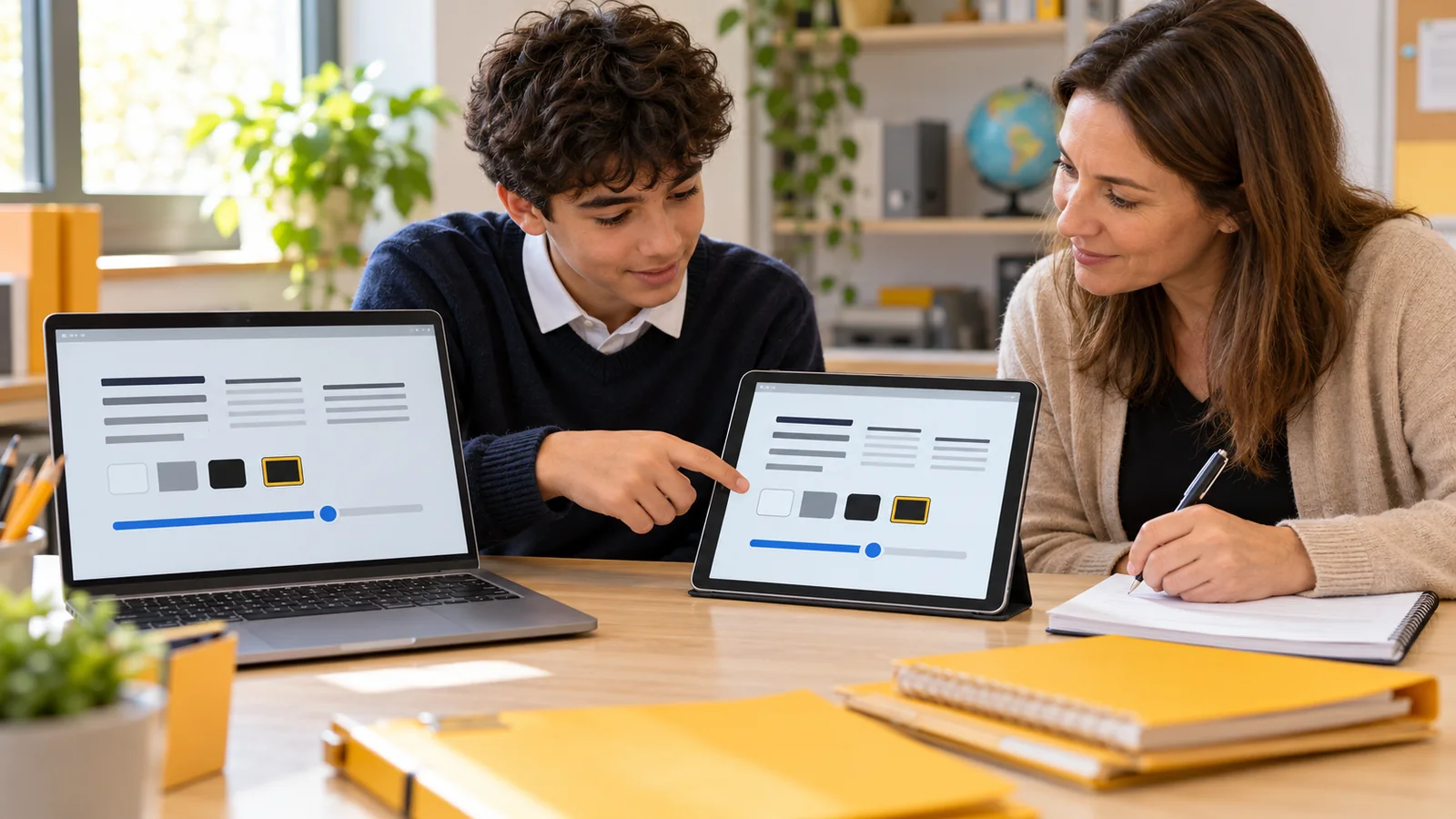
In this fictional example, Ari uses larger text and a particular reading view on a home tablet. The school laptop has a larger screen, but the course document still feels crowded. Copying a text-size number does not reproduce the experience.
Ari and a school support contact identify the relevant reading-view controls and test the same short passage. They agree different settings that provide a comparable reading experience and document where those settings live.
After a later app update, the record helps the support contact investigate a changed display. Ari’s feedback remains the deciding evidence about whether the revised arrangement works.
Common questions
Should every device use identical settings?
No. Aim for usable access. Different screens, apps and input methods may need different values or arrangements.
Will cloud sync transfer every accessibility preference?
Do not assume so. Check the platform, account and app’s documented scope, then verify the actual task.
Why does one app look different from the rest?
It may have its own controls or per-app settings. Identify which layer controls the feature before changing unrelated preferences.
Can I use a personal account to copy settings to school equipment?
First confirm the school’s authorized process. Personal sign-in may transfer more information than the intended preferences.
What belongs in a settings record?
Include the task, device, relevant versions, important preferences and help contact. Explain what each adjustment supports.
Should passwords be included?
No. Keep credentials and recovery information out of a shared access-settings record.
How can we check a backup?
Use the supported process and verify the restored access functions. A backup status alone does not demonstrate that every app preference is usable.
Who changes restricted school settings?
Ask the school to identify the responsible administrator or support contact and provide a clear description of the access barrier.
When should the setup be reviewed?
Review after relevant updates, device or account changes, repairs and changes in the student’s task or preferences.
What if the same settings stop helping?
Revisit the goal and the student’s experience. Adjust the arrangement rather than preserving a previous configuration solely for consistency.
Sources and scope
Microsoft, Google and Apple document the labelled platform examples. The record and workflow checklist are editorial guidance. No device was configured, account linked or backup restored for this article.
- Microsoft: Windows Backup — preference categories and account context.
- Google: Android backup and restore — version and app limitations.
- Apple: Per-app visual accessibility settings — application-specific controls.