Assistive Technology
Adjusting Phone Notifications for a Less Interruptive Day
Decide which interruptions are useful, change one group of settings and test the exceptions that matter.
Archive edition: 4 September 2026 · assigned for archive organisation
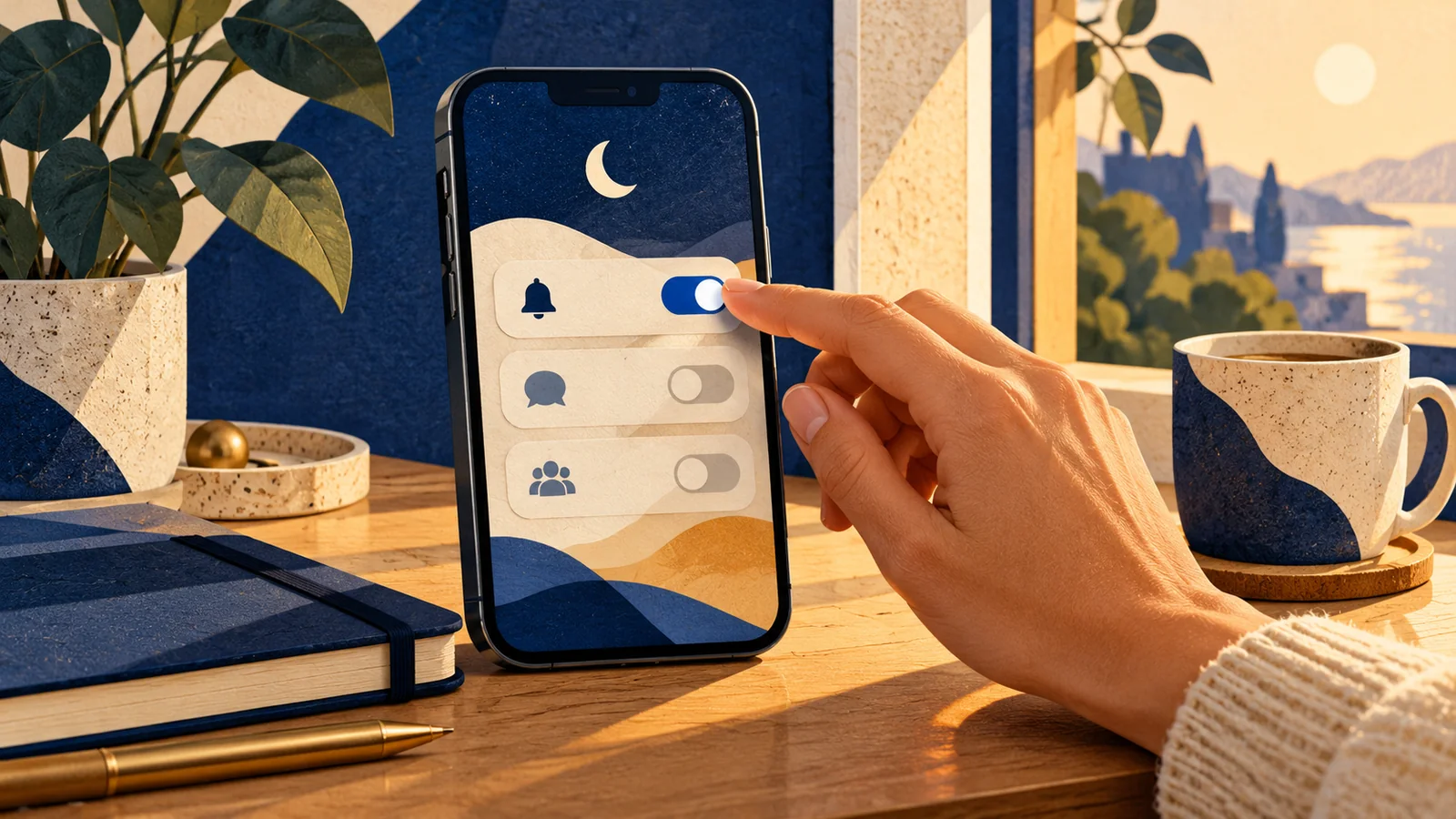
A less interruptive phone does not have to be an unreachable phone. Start by deciding which information needs your attention now, which can wait and which you do not want at all. Then choose the smallest settings change that matches that decision.
This guide covers documented iPhone and Android notification controls, checked on 21 October 2026. It is a practical setup and review worksheet, not a promise that changing alerts will improve health or productivity. Device versions and manufacturer menus differ, so check the instructions that match your phone.
At a glance
- Distinguish unwanted alerts from useful reminders before changing settings.
- Choose between an app-level change and a temporary mode.
- Review allowed people, apps, alarms and other exceptions.
- Test the arrangement and learn how to turn it off again.
Identify the interruption you want to change
A sound, vibration, banner, badge and lock-screen preview are different parts of a notification. You may want a message available without a sound, or an important alert without its private content visible on the lock screen. Turning off every notification from an app may remove more than you intended.
Look at a small sample of recent alerts without sharing private messages. Which were useful at that moment? Which could have been checked later? Which were promotional or irrelevant? Write down the result in categories rather than copying personal content into a tracking sheet.
Include reminders that support your routine. If an alert helps you remember an appointment, transport connection or agreed responsibility, consider that purpose before silencing it. The goal is a deliberate arrangement, not the lowest possible notification count.
Choose the right control for the problem
| Situation | Control to investigate | Question before changing it |
|---|---|---|
| One app sends unwanted alerts all day. | The app’s notification settings. | Does the app separate useful alerts from promotions? |
| You want a quieter period for a particular activity. | A temporary Focus or Do Not Disturb mode. | Which people, apps and reminders should still get through? |
| The sound is the problem, but the information is useful. | Sound and presentation options where supported. | How will you notice the information when you need it? |
| Private details appear on the lock screen. | Notification preview settings. | Should content appear only after unlocking? |
| A mode stays active longer than intended. | Duration, schedule and activation rules. | What starts it, and how will it end? |
Change one small part first. If you alter several app settings and add an automatic schedule at the same time, it becomes harder to explain a missing alert later. Keep a short note of what you changed and why.
iPhone: app settings and Focus serve different purposes
Apple’s current guide places app notification controls under Settings → Notifications → the app. Depending on the app, options cover permission to notify, sounds, badges, presentation and previews. Scheduled Summary groups selected app notifications for chosen delivery times. Read Apple’s notification settings guide.
Focus is a separate way to configure a period or activity. In Settings → Focus, choose an existing Focus or create one, then review People, Apps and related options. Apple also documents schedules and sharing Focus settings across devices. Read Apple’s Focus setup guide.
Decide whether the change belongs to one app all the time or to a particular situation. For example, unwanted marketing alerts may call for an app-level change. A temporary reading period may call for a mode whose allowed contacts and finish time you have checked.
Review any option that shares status or applies settings across devices before enabling it. A phone change may affect the experience on another device or show other people that notifications are silenced. Choose those behaviours deliberately rather than treating every setup suggestion as required.
Android: review the mode and its filters
Google’s current instructions use Settings → Modes → Do Not Disturb and describe notification filters for people, apps, and alarms or other interruptions. Duration and automatic rules can also be configured. Some instructions require Android 14 or later, and Google notes that settings vary by phone. Read Google’s Modes and Do Not Disturb guide.
Use the menu on your actual device and the manufacturer’s documentation if the names differ. Do not assume that the same switch has identical defaults on every Android phone. In particular, inspect the categories you depend on instead of relying on the mode’s name.
A phone can have several reasons for a mode to activate. If it turns on unexpectedly, check schedules and other configured triggers before changing every notification permission. Keep the investigation focused on what is actually happening.
Run a small, reversible test
- Choose. Name one unwanted interruption and the alerts you still need.
- Configure. Make the relevant change and review exceptions and duration.
- Check. Test the expected behaviour, then keep or revise the arrangement.
Use a non-critical period for a first trial. Check the behaviour you intended to change and the behaviour you intended to preserve. For example, verify that a chosen reminder still appears and that you know where to find a silenced notification later. If another person helps with a test call or message, agree with them first.
Record what actually happened, not what the setting sounded as though it would do. “The banner stayed visible but made no sound” is a more useful note than “Quiet mode works.” Check connected devices separately if they also display alerts.
Learn the exit before relying on the mode. Find the control to turn it off and check whether an automatic rule will turn it on again. After a significant update or a change in responsibilities, revisit the arrangement rather than assuming old choices still fit.
Common questions
Should I turn off all notifications?
Start with the alerts you want to change and preserve those you depend on. A broad switch may remove useful information as well as unwanted interruptions. An app-specific change or a temporary mode may fit the problem more closely.
Is silent mode the same as Do Not Disturb or Focus?
Do not assume identical behaviour. Review the controls and exceptions available on the actual phone, then test the expected result. A sound setting and a mode that filters people or apps address different aspects of the notification experience.
Will my alarm still work?
Check the alarm and mode settings on your device and test during a non-critical period. This guide does not promise that every alarm app or configuration bypasses every mode. Treat an alarm you rely on as something to verify explicitly.
What if an important person cannot reach me?
Review allowed people and the type of communication they are using, alongside app permissions. Check whether another schedule or setting is active. If you have an agreed contact arrangement, confirm that the configuration supports it before relying on the quieter mode.
Can I keep a message without showing its contents on the lock screen?
On iPhone, Apple’s guide describes preview controls, including showing previews when unlocked or never, where supported. Other phones offer their own options. Check the resulting lock-screen appearance with non-sensitive content rather than assuming the label is enough.
Why do alerts still appear on my watch or computer?
Connected devices may have their own notification and synchronisation settings. Review the relevant device instructions and your sharing choices. A change on the phone should not be assumed to configure every connected screen in exactly the same way.
What if the Android menu does not say Modes?
Check the phone’s version and manufacturer guidance. Google’s instructions explicitly note differences between devices and older versions. Search Settings for Do Not Disturb, then inspect the available filters instead of copying a path that does not match.
Can a supporter set this up for someone else?
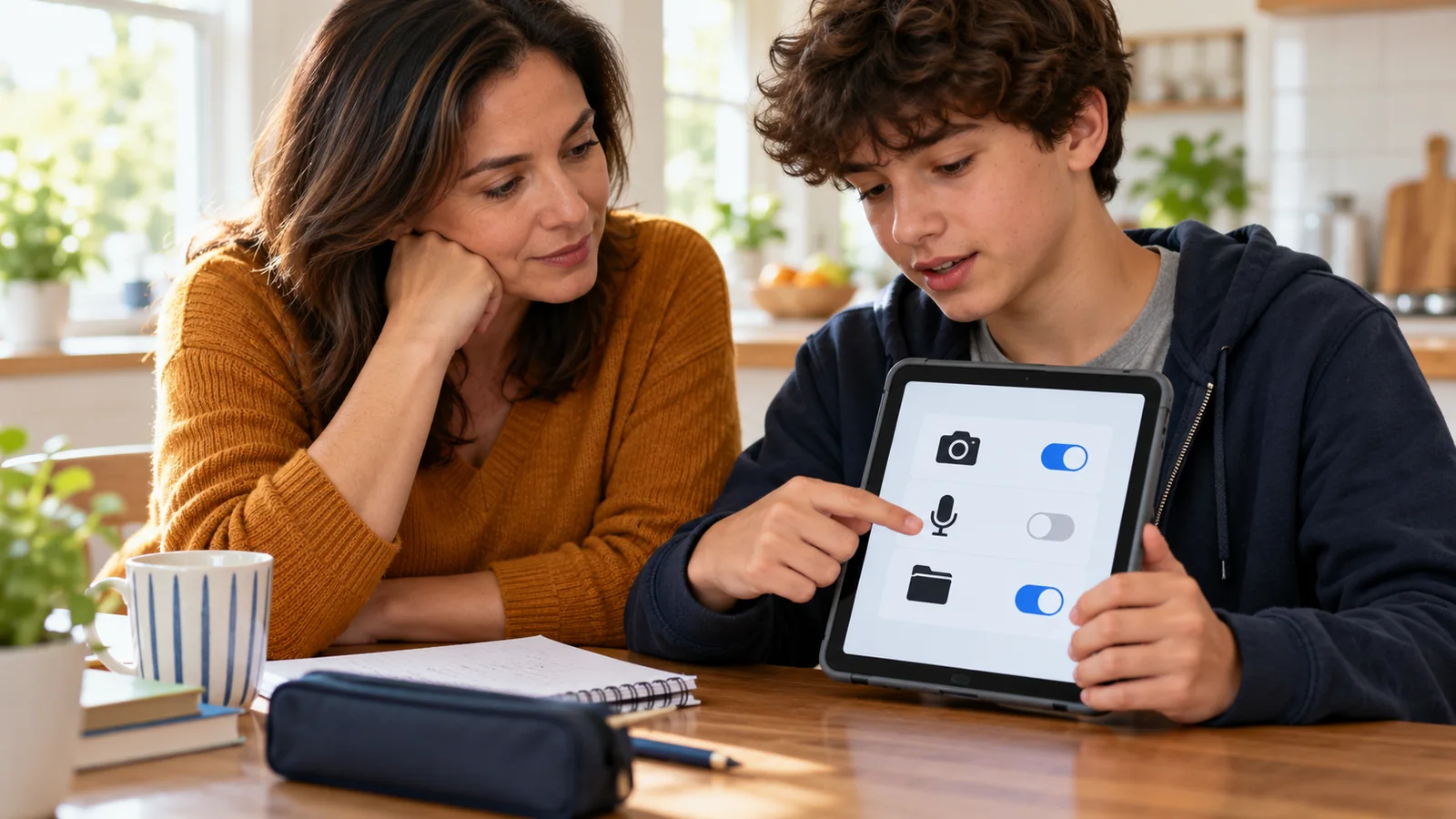
Work with the person and agree which alerts matter to them. Explain what will change and how to reverse it. Do not silently remove communication or reminders because they seem unimportant to the helper.
Should I use an automatic schedule immediately?
A manual trial can make the effect easier to understand first. If the person wants a schedule, confirm the start and end conditions and check them in use. Automatic activation should match a real routine rather than an assumed one.
How do I decide whether the change helped?
Ask whether the unwanted interruption reduced and whether needed information remained accessible. Include the effort of checking missed alerts and managing the mode. Keep the arrangement only if it supports the person’s actual preferences and responsibilities.
Sources
Official instructions opened and checked on 21 October 2026. Apple pages displayed current iOS documentation; Google identifies version and manufacturer differences. No user’s notification settings were changed to prepare this guide. The comparison worksheet is original editorial material.