Assistive Technology
Reading Modes and Distraction Controls: Comparing Built-In Browser Options
A simpler reading view can change the page. Check the extracted text, controls and links against the original.
Archive edition: 7 September 2026 · assigned for archive organisation

A browser reading view can make an article easier to inspect by presenting its content in a simpler layout. It may also provide controls for text size, spacing, colours or spoken output. The useful question is whether the resulting view preserves the information you need and suits the way you want to read.
This guide compares documented desktop options in Chrome, Microsoft Edge and Firefox, checked on 21 October 2026. It is a feature-based starting point, not a speed benchmark or a recommendation to replace a browser that already works for you.
At a glance
- Try a reading view on an ordinary article before relying on it for a complex task.
- Compare the extracted content with the original page.
- Adjust one layout setting at a time.
- Return to the original for forms, missing context and interactive content.
Identify the reading task
Start with the difficulty you want to address. Is the article surrounded by distracting material? Is the line too wide? Is the text too small? Do you want to listen while following along? A reading view may help with some of these questions without replacing every accessibility feature you use.
Choose a familiar page with a heading, several paragraphs and a relevant image or list. Keep the original available so you can check what the browser includes. Do not begin with a payment form, a timed assessment or a page where losing your place would have consequences.
Ask the reader what a useful result would look like. Someone might want fewer surrounding elements but still need the images. Another may care most about the width of the text column. These preferences are more informative than choosing the browser with the longest feature list.
Compare the documented options
| Browser | How to begin on a supported page | Options to inspect |
|---|---|---|
| Chrome | Right-click the page and choose Open in reading mode. | Full-screen or side-panel view, text presentation and read-aloud controls. |
| Microsoft Edge | Choose Reading mode in the address bar when available. | Text appearance, Read aloud and separately offered interactive tools. |
| Firefox | Choose the Reader View icon when it appears in the address bar. | Text layout, themes and read-aloud availability. |
Google’s current desktop guide describes full-screen Reading mode with an option to switch to a side panel, plus font, spacing, theme and read-aloud controls. It explicitly says the feature is not available for every website and identifies limitations with interactive formats. Read Google’s Reading mode instructions.
Microsoft’s current Edge guide describes Reading mode for supported pages, with Read aloud, font and theme options. It also lists summarisation and other Copilot features. Read Microsoft’s Reading mode guide. Using a simpler reading layout and asking an AI service to interpret content are separate choices.
Mozilla’s Firefox guide describes Reader View when its address-bar icon is available, with controls for text layout and themes. Read-aloud availability depends on text-to-speech support for the article’s language. Read Mozilla’s Reader View guide.
Check what the reading view preserved
Compare the title, opening paragraphs and ending with the original. Look for a missing section, a repeated passage or an image whose caption carries important meaning. A cleaner page is useful only if it still contains what the reading task requires.
Pay particular attention to tables, footnotes, expandable sections and links to supporting sources. A visual simplification may not preserve every relationship or control in the way you expect. If the source article says “see the table below,” check whether that table remains usable.
For research or schoolwork, keep the original source address and author information. A reading view changes presentation; it does not become a new source or establish the accuracy of the article. Return to the source page when checking citations, dates or a correction notice.
Adjust the layout around the reader
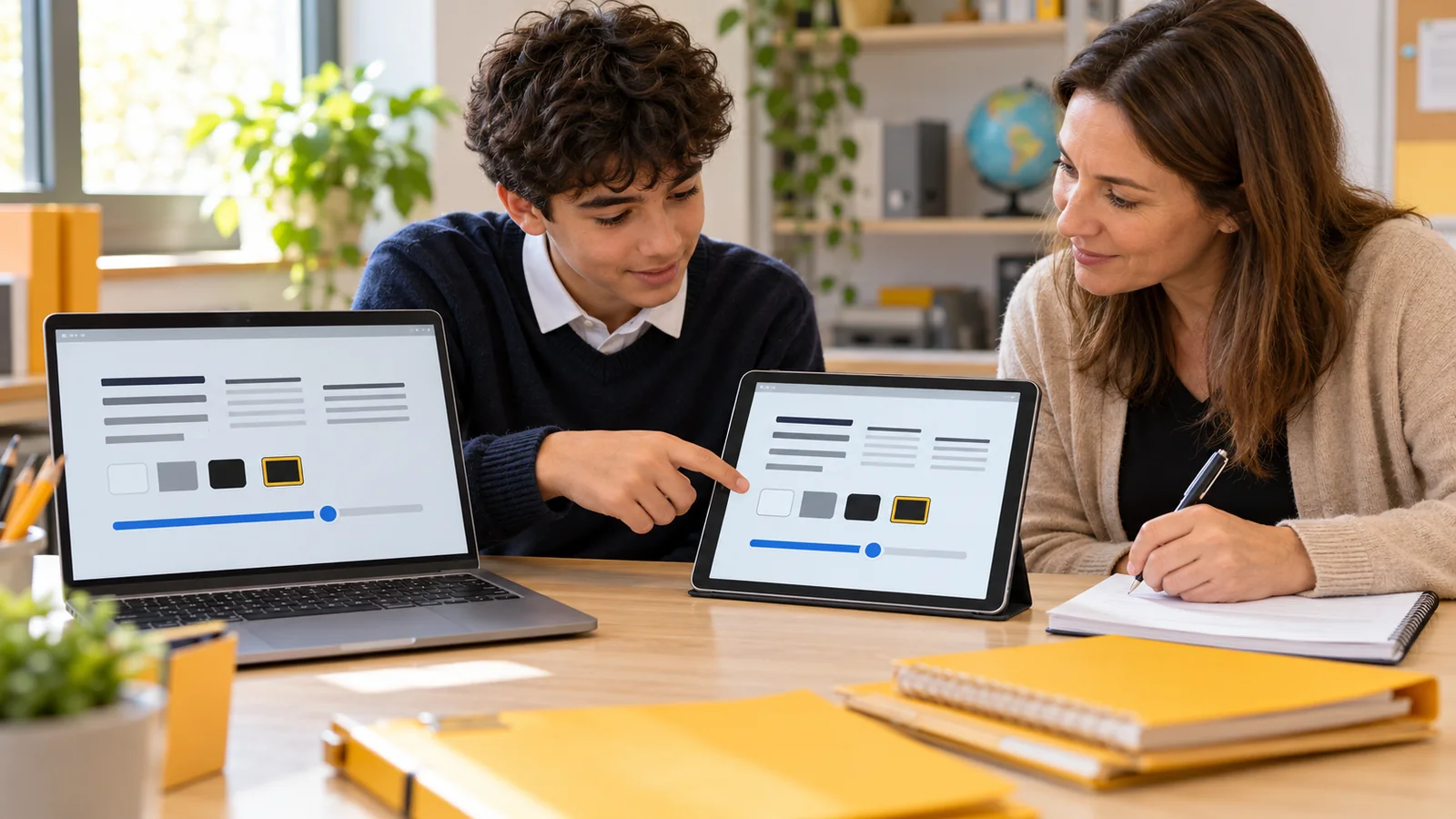
Change one setting and use the same passage to compare. If you enlarge the text, check how much scrolling is needed and whether headings still help you keep your place. If you narrow the column, check whether the line length feels useful rather than assuming narrower is always better.
Compare themes in the lighting where you normally read. A colour scheme that looks attractive in a preview may make links or emphasis difficult to distinguish. Check those details as well as the main paragraph text.
If spoken output is useful, test its controls separately from the layout. Find pause, restart and the way to return to the sentence you want. Do not confuse a pleasant voice with complete or accurate extraction of the page.
Keep interactive tasks in context
A reading view is most useful when the task is reading the content it can present. If you need to submit a form, use a map, complete a quiz or interact with a changing page, check the original interface. Google’s documentation explicitly lists several such formats among Reading mode’s limitations.
Optional summaries should also be checked against the original. They can omit qualifications or change emphasis. This guide does not test the accuracy of AI summaries or recommend sending private school, health or workplace material to an additional service.
On an organisation-managed browser, a feature may be unavailable or configured differently. Ask the relevant support team about the specific task. Do not change security settings or install an unfamiliar extension simply to make a menu match a screenshot.
Run a small comparison before changing your routine
- Open. Choose a familiar article and keep its original page available.
- Compare. Check the content, then try one text or layout adjustment.
- Decide. Keep the view for tasks it supports and return to the original when needed.
For example, a student might prefer a larger-text reading view for a long explanation but return to the original for a diagram and its source links. That is a valid mixed approach. There is no requirement to complete the entire task in one view.
Record the browser, version, useful settings and any material that was omitted. A short note makes future troubleshooting more precise. Recheck after a major update or when the website changes its layout; the same page address may no longer behave identically.
Common questions
Why is there no reading-view icon on this page?
The browser may not identify the page as supported content, or the feature may be unavailable in that version or configuration. Check the official instructions and try an ordinary article. Do not assume the absence means the browser installation is broken.
Does reading mode remove every distraction?
It changes the presentation of supported content, but it does not control every notification, open app or feature on the device. Decide which interruption you are trying to address and choose the relevant control rather than expecting one view to solve everything.
Is a reading view the same as an ad blocker?
Do not treat the functions as interchangeable. This guide concerns a different presentation of a page’s readable content. It does not evaluate network blocking, tracking protection or how advertisements are handled outside that view.
Can I trust that the full article is included?
Check the extracted text against the original, particularly headings, endings, tables and expandable sections. If important material is absent, use the original or obtain an accessible version. A clean layout is not proof of complete extraction.
Which browser has the best reading mode?
This guide does not rank them. Try the option already available to you with your actual material and preferences. Feature availability, content extraction and managed-device settings can affect the result more than a general comparison table.
Can I use it for a school quiz?
Check the school’s rules and the quiz’s technical requirements. Interactive controls may not be preserved in a reading view. Arrange an approved accessible format or support rather than discovering missing controls during a timed task.
Why did a diagram or caption disappear?
The reading view may have extracted only part of the page or applied an image-display setting. Compare it with the original and check available options. Do not continue using an explanation without a diagram when that diagram is needed to understand it.
Will my preferred settings change every webpage?
Reading-view settings generally concern that view; the documented scope varies by browser. Check the normal page after leaving the mode. Use the browser’s or device’s broader display controls if the problem also affects menus and other content.
Can I use a summary instead of the source?
For important facts or instructions, check the original. A summary is a separate representation and can leave out details. Keep source links and context available, especially when making decisions or completing work that requires accurate attribution.
What should I do if the view is less useful?
Return to the original and identify what was missing or harder to use. Another layout setting, a different source format or a separate accessibility tool may address the problem. There is no benefit in persisting with a view that adds difficulty.
Sources
Official desktop documentation opened and checked on 21 October 2026. This comparison describes documented features, not hands-on testing across all three browsers. Browser labels and supported content may change. The trial and student example are original editorial material.
- Google: Use reading mode in Chrome — computer instructions and unsupported-format limitations.
- Microsoft: Use Reading mode in Microsoft Edge — current reading and optional interactive features.
- Mozilla: Firefox Reader View for clutter-free web pages — layout, themes and read-aloud availability.