Assistive Technology
Accessible Note-Taking Tools: A Trial Checklist for Students
Trial note-taking from capture through review, retrieval and export using the student’s access methods.
Archive edition: 9 September 2026 · assigned for archive organisation
On this page
- At a glance
- Identify the bottleneck in the task
- Separate technical features from permission
- Trial the whole workflow
- Make the notes navigable
- Check the effort needed after the lesson
- Check privacy, portability and continuity
- A practical example
- Decide what to keep after the trial
- Common questions
- Sources and scope
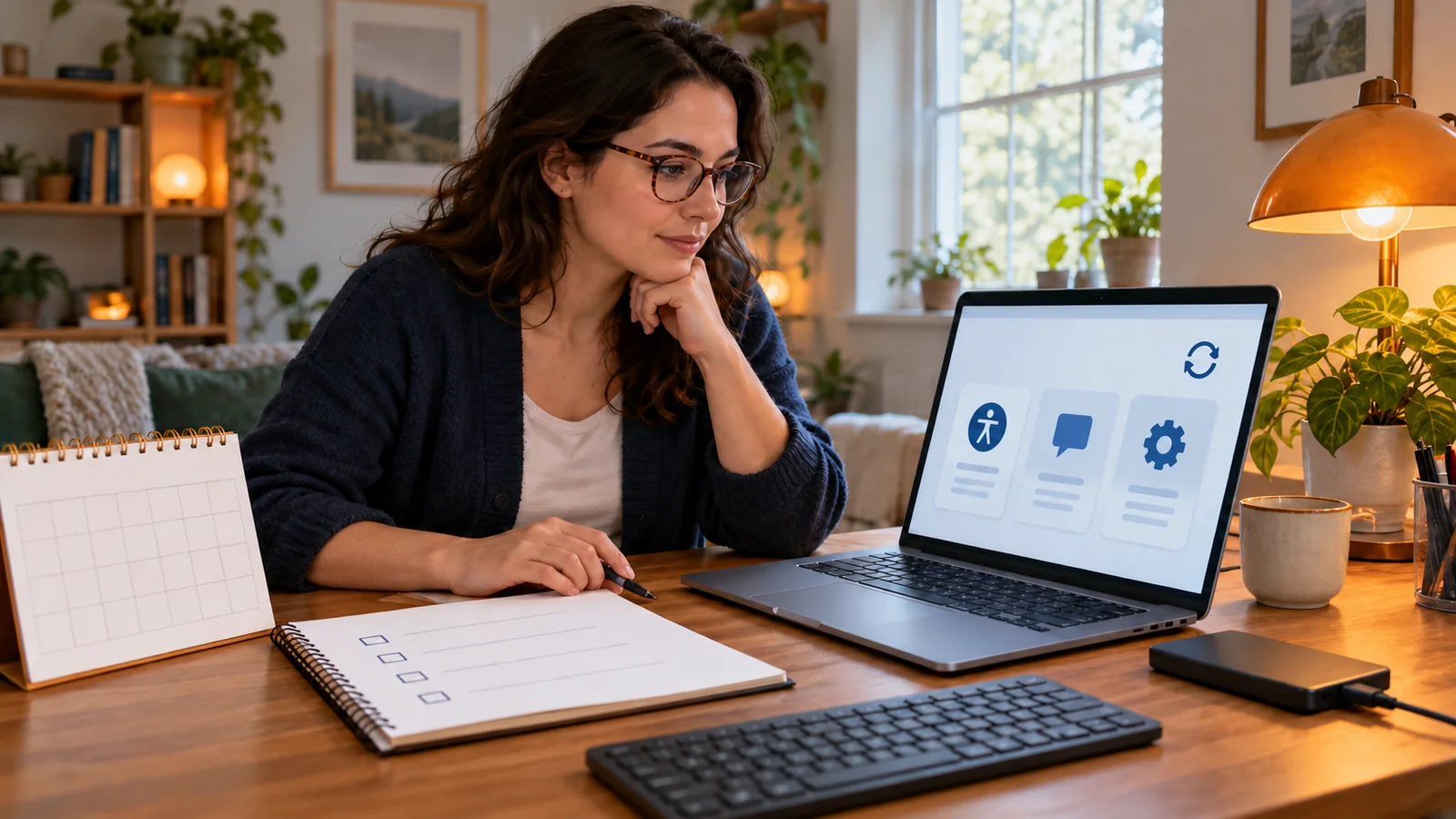
A note-taking tool is useful when the student can capture important information, understand it later and find it when needed. A long recording or a colourful notebook can still be difficult to use. The trial should follow a real learning task from the lesson through review, revision and preparation for the next class.
This guide offers a practical comparison method, with clearly labelled examples from Microsoft documentation and UBC guidance. It does not rank products, certify accessibility or establish permission to record a class. Check the student’s actual device, account, course requirements and access needs.
Identify the bottleneck in the task
Ask what becomes difficult during or after a lesson. The student may be unable to listen and type simultaneously, locate a useful point in a recording, read handwritten notes or organize material across subjects. These problems call for different features and sometimes different support arrangements.
Start with one concrete goal, such as finding the explanation of a worked example after class. This gives the trial something observable to test. “Take better notes” is too broad to show whether a particular tool helps.
Include the student’s preferences. Some want a simple typed outline; others use diagrams, audio markers or a combination. Do not equate the most elaborate notebook with the best learning. A method that requires constant formatting may distract from the information the student is trying to understand.
Separate technical features from permission
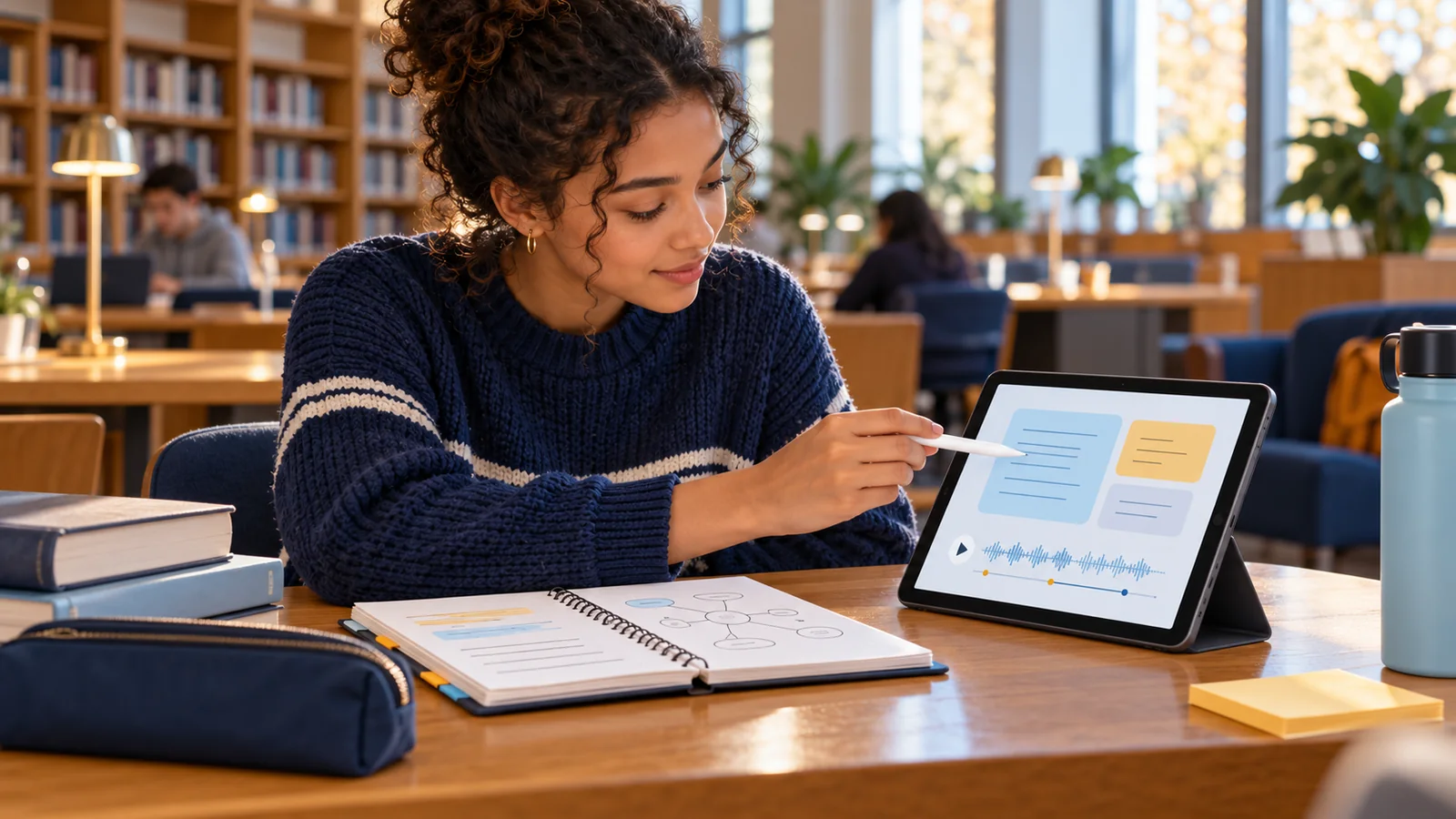
Microsoft’s OneNote recording documentation describes linking notes taken during a recording to the recorded material. That is a feature example, not permission to record a teacher or classmates. Availability and controls depend on the application version and setup.
UBC’s classroom recording guidance tells students to follow instructor and syllabus requirements, while recognizing that approved accommodations can permit recording or transcription. It also distinguishes personal academic use from wider sharing and asks students to check before uploading recordings to AI tools. These are UBC-specific expectations, not a universal Canadian recording rule.
Before testing with a real class, ask which recording or transcription arrangements are authorized, who can access the material and how long it may be kept. A short practice clip created for the trial can test navigation without capturing anyone else’s private discussion.
Trial the whole workflow
| Stage | Task to try | Question to answer |
|---|---|---|
| Prepare | Create a page and add permitted lesson materials | Can the student start without excessive setup? |
| Capture | Note a main idea, question and example | Can the student stay engaged with the lesson? |
| Organize | Name and place the note in the intended location | Will it be findable later? |
| Review | Locate one explanation and identify a gap | Does the material help understanding rather than just storage? |
| Use elsewhere | Open or export the note in the required setting | Does essential content remain accessible? |
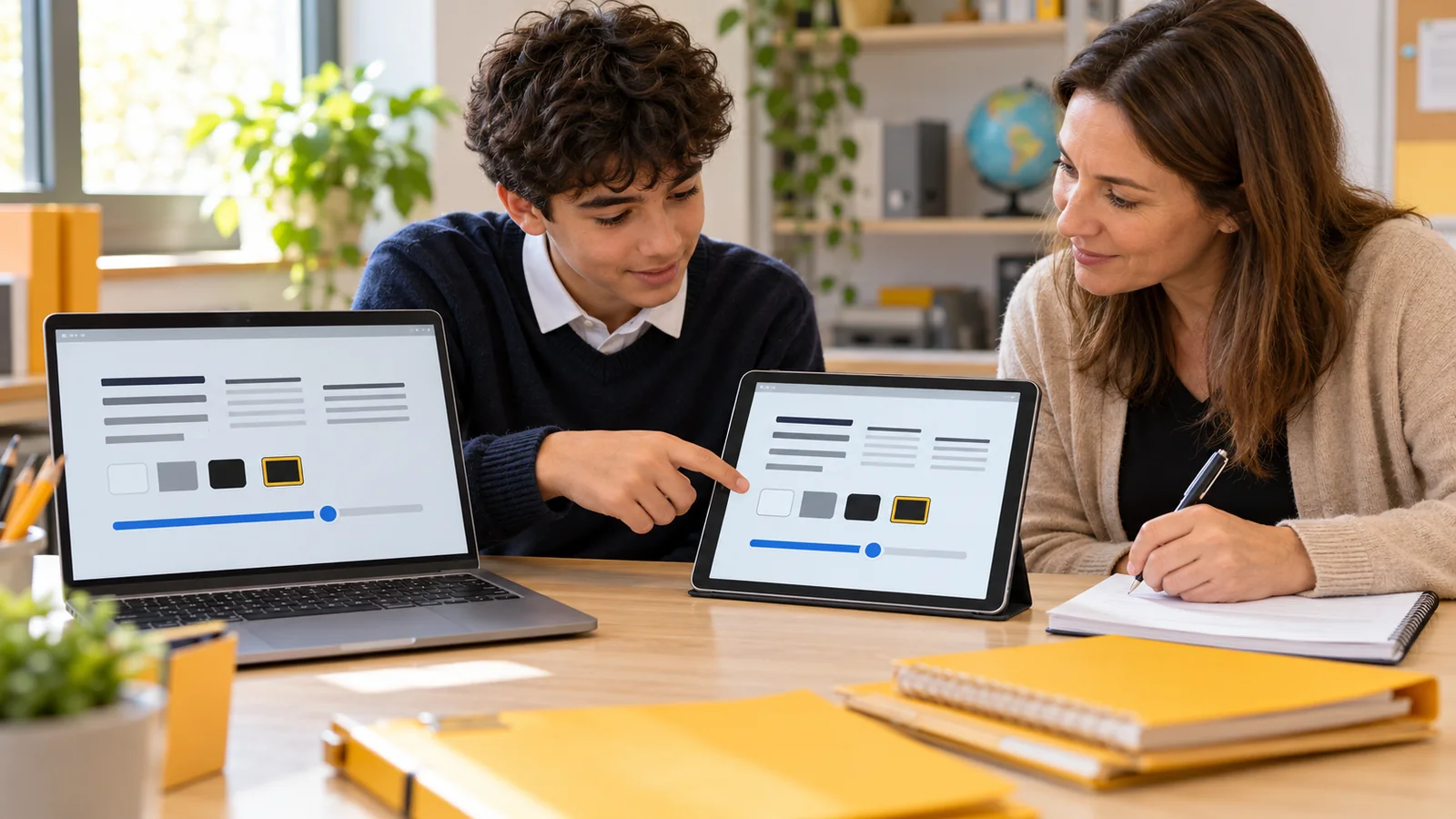
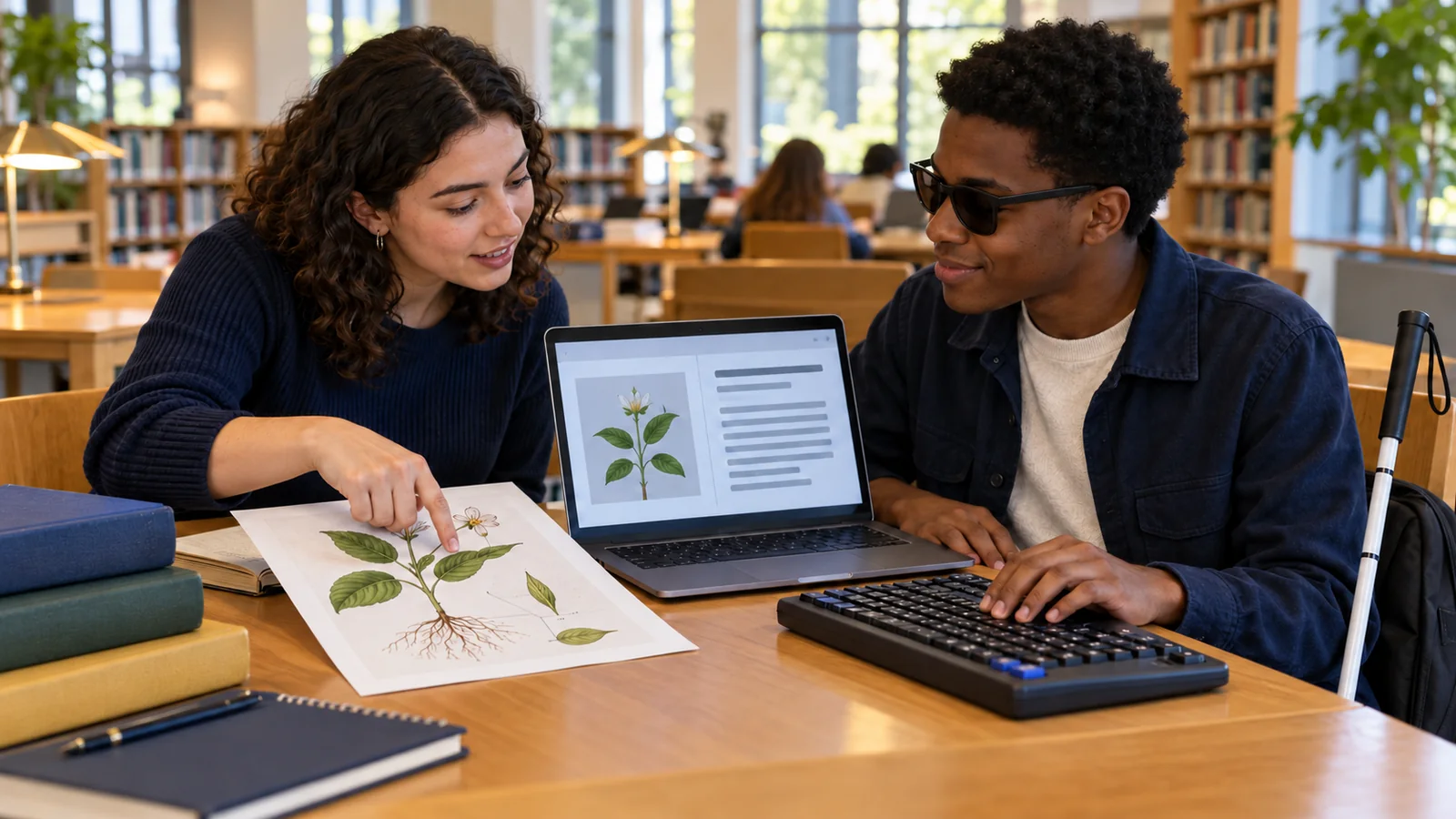
Use the student’s normal input and reading methods. If they use keyboard navigation, a screen reader, magnification, switch access or speech input, include that method in the trial. Do not substitute an adult’s mouse-based demonstration for the student’s actual access.
Record the device, software version, account and relevant settings. If the tool depends on a school-managed service, ask what happens at home, offline or after the course ends. A trial should reveal those boundaries before the notebook becomes the only place important work is stored.
Make the notes navigable
Microsoft’s accessible-notebook guidance emphasizes descriptive names, built-in headings, meaningful links and alternatives for important visuals. These principles help explain why content organization matters alongside the app’s advertised accessibility features.
Try finding a note from the previous week without opening every page. Can the student recognize the subject, lesson and purpose from the title? If not, agree a small naming convention that they can sustain. Avoid an elaborate system that only another person understands.
Test how information is read in sequence. A page made from scattered text boxes, pictures and pasted screenshots may be visually attractive but awkward with the student’s reading method. Check whether essential information remains understandable when enlarged, read aloud or accessed through assistive technology.
Check the effort needed after the lesson
Ask the student to return to the trial note after a break and use it to answer a question. Can they distinguish the main idea from a quotation, their own question or an automated transcript? Can they identify which part still needs clarification from the teacher?
A complete recording may preserve information but require a long review. Markers or short summaries may help some students, while others prefer a structured outline. Measure the actual review task rather than assuming that more captured material is always better.
If the tool produces a transcript or AI summary, check important content against the original source. An automatic output can omit a qualification or confuse a technical term. Keep the student’s own understanding and the authoritative course material distinct from machine-generated notes.
Check privacy, portability and continuity
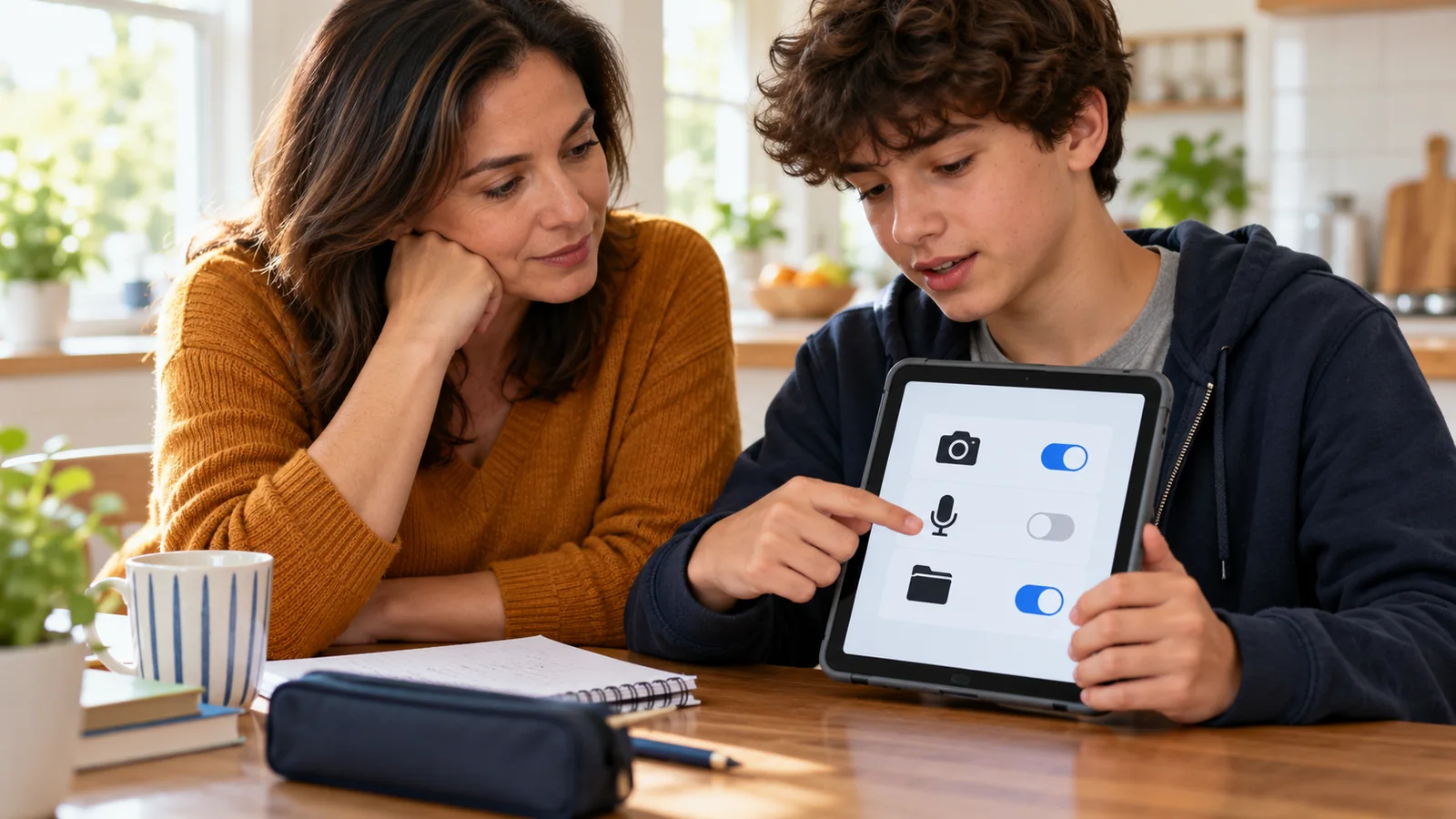
Ask where notes, recordings and attachments are stored and who can access them. A shared class notebook may have different permissions from a private section. Confirm the actual settings before adding personal reflections, accommodation details or other sensitive information.
Review export with a small sample. Check whether typed text, images, audio links and organization survive in the format the student needs. A file that opens on another device may still lose the connection to a recording or become difficult to navigate.
Clarify what happens if a subscription ends, a school account closes or a device is replaced. Ask about permitted retention and export in advance. Keep an appropriate recovery method for important work, but do not create unauthorized copies of recordings or course materials.
- Choose: identify the learning task and access barrier.
- Follow through: capture, organize, review and use a real sample.
- Decide: compare effort, permission, portability and the student’s preference.
A practical example
In this fictional example, Alex can type short notes but loses track of where an explanation appears in a long lecture recording. With an approved recording arrangement, Alex trials a method that connects brief markers to important points. They then try finding one worked example after class.
The markers help, but the first notebook structure makes older lessons difficult to locate. Alex chooses simpler page names and a short review routine. The decision is based on retrieving and understanding information, not on how many minutes the app can record.
When the class later uses a different platform, Alex and the support contact check the workflow again. The earlier result does not establish compatibility with every future course or device.
Decide what to keep after the trial
Compare a small number of options against the original goal. Include setup effort, use during class, review time, access methods and any ongoing cost. If a basic existing tool works, there is no need to add features merely because they are available.
Agree who will help with setup or problems and when the arrangement will be reviewed. If the trial exposes a barrier that the tool cannot address, discuss other note-taking supports through the school’s or institution’s relevant process. A student should not have to make every lesson accessible through personal software work alone.
Common questions
Should the trial focus on typing speed?
Only if that is the relevant barrier. Include understanding, finding information later and the effort required to review and use the notes.
Does an audio-recording feature give permission to record?
No. Confirm the applicable course, institution and accommodation arrangements before recording other people or uploading their speech to a service.
Are handwritten notes less accessible than typed notes?
It depends on the student and the task. Trial the actual reading, editing and retrieval method rather than assuming one format suits everyone.
How can a screen-reader user test the notebook?
Use their actual screen reader and device to create, navigate and review a sample. Check meaningful titles, reading order and access to important visual information.
Is a full transcript enough for studying?
Not necessarily. Check accuracy, organization and how easily the student can locate and understand the relevant explanation. A large volume of text can create its own review task.
Can AI summaries replace the student’s notes?
Check permission and verify important content. A summary can omit or alter meaning, so it should not automatically be treated as an authoritative account of the lesson.
What should we test before paying?
Try the complete workflow with the actual account and access methods. Confirm any trial limits, ongoing cost, export options and what happens when access ends.
Will exported notes preserve every feature?
Do not assume so. Test a sample containing the types of text, images and recordings the student uses, and check it in the destination application.
What if the tool works only with help from an adult?
Clarify which assistance is sustainable and appropriate. Consider whether a simpler workflow or another support would give the student more usable control.
When should we review the choice?
Review after a meaningful trial and when courses, devices, accounts or access needs change. Keep the original learning goal and the student’s experience central.
Sources and scope
Microsoft documentation supports the labelled feature and content-organization examples. UBC guidance illustrates institution-specific recording rules. No app was independently tested, no class was recorded and no individual accommodation was approved through this guide.
- Microsoft Support: Record audio or video notes — linked recording feature context.
- UBC: Classroom recordings — permissions, accommodations and permitted use.
- Microsoft Support: Make OneNote notebooks accessible — structure and accessible content.