Assistive Technology
Assistive Technology for Learning: Start With the Task and the User
Start with the learner's task, then compare tools through a practical trial that includes preferences, accessible materials and support.
Archive edition: 22 August 2026 · assigned for archive organisation

A learning tool is useful when it helps a particular person do a particular task in the setting where that task happens. A long feature list cannot answer that question by itself. Before comparing devices or subscriptions, describe what the learner wants to do, where the difficulty occurs and how you will decide whether a change is helpful.
This guide offers a practical selection and trial framework for learners, families and school teams in Canada. It does not rank products or prescribe equipment. The examples are original discussion prompts. Specialist assessment may be needed for some access needs, and school purchasing, privacy and funding arrangements must be checked locally.
At a glance
- Write down the learning task and the learner’s own priorities before choosing a tool.
- Include setup, training, accessible materials and support in the plan.
- Try an option with a representative activity, not only a demonstration.
- Compare access, effort and preference; do not use speed as the only measure.
What counts as assistive technology?
The World Health Organization uses assistive technology as an umbrella term covering assistive products and the systems and services around them. Its examples include physical products and digital tools, such as speech recognition and captioning. The category is broader than a specialist tablet or an expensive device. Read WHO’s assistive-technology overview.
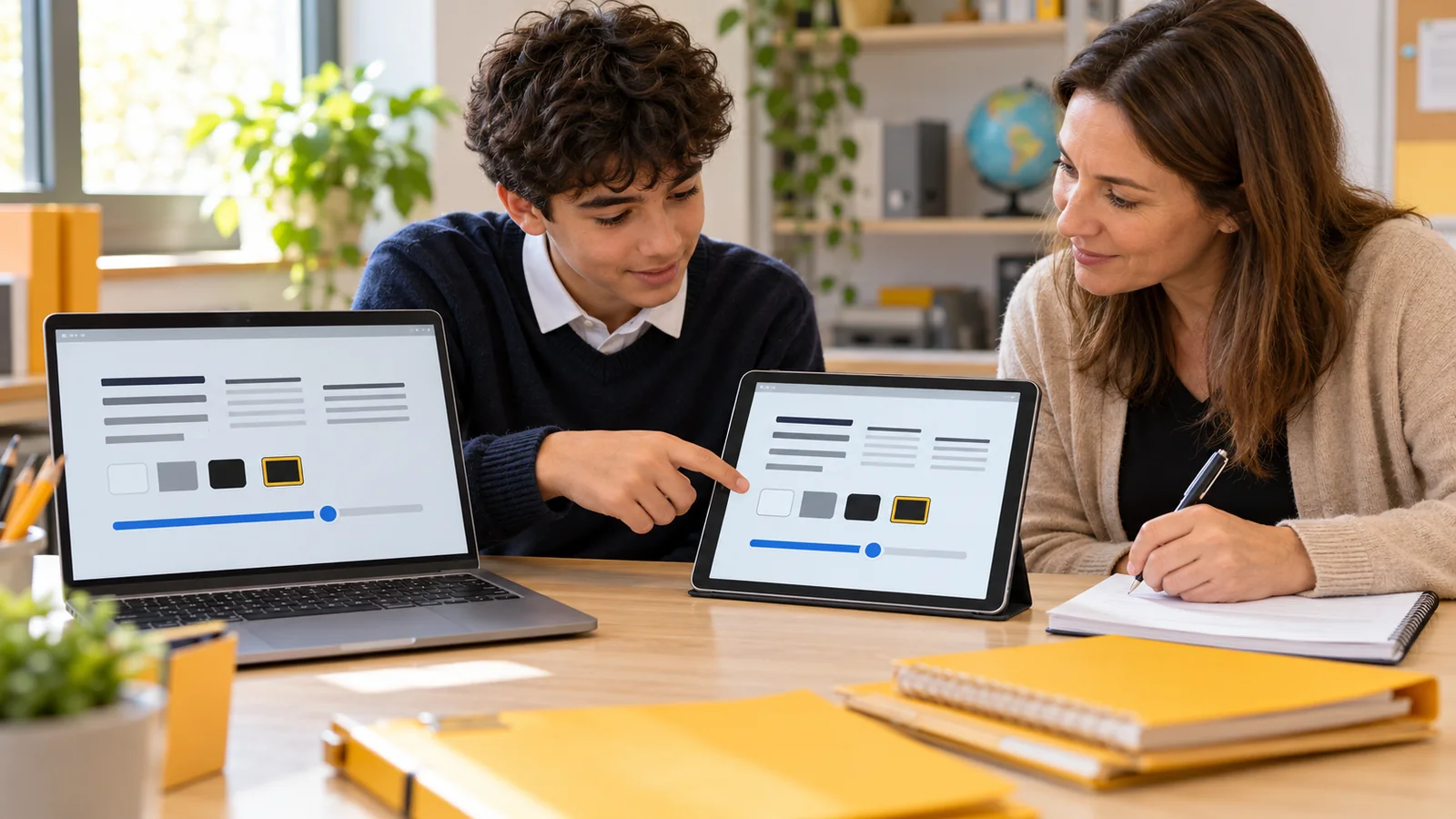
In a learning discussion, distinguish the tool from the activity it supports. Reading a science explanation, drafting a response and joining a group discussion are different tasks, even when all happen in the same lesson. A tool that helps with one stage may do little for another. Write down the stage at which the learner encounters the barrier.
For example, “I lose my place while moving between the question and the answer box” is more specific than “I need a better laptop.” It leaves room to discuss document layout, navigation, an alternative format or a tool. It also makes it easier to check whether the proposed change addresses the original difficulty.
Listen before selecting
Ask the learner how they currently complete the task, what takes extra effort and what they would like to keep. Do not assume that a familiar workaround is wrong simply because it is unusual. A learner may value privacy, portability, quiet operation or the ability to choose between methods more than an adult expects.
SET-BC’s classroom resource starts technology selection with student need. The resource itself warns that its modules were originally designed in 2016 and some information is no longer current. Use that stable selection principle as background, while checking current product details elsewhere. Explore SET-BC’s classroom learning resource.
Invite the learner to show a comfortable example and a difficult example if they want to. Ask permission before recording a demonstration or sharing their work. You can take brief notes without turning the activity into a performance test. Where someone uses an established communication system, include a person who understands how to support its use.
Plan the whole activity
- DescribeName the task, the setting and the learner’s preferred outcome.
- TryArrange an appropriate option, the materials and enough support to use it.
- ReviewCompare what happened with the original goal and decide what to retain or change.
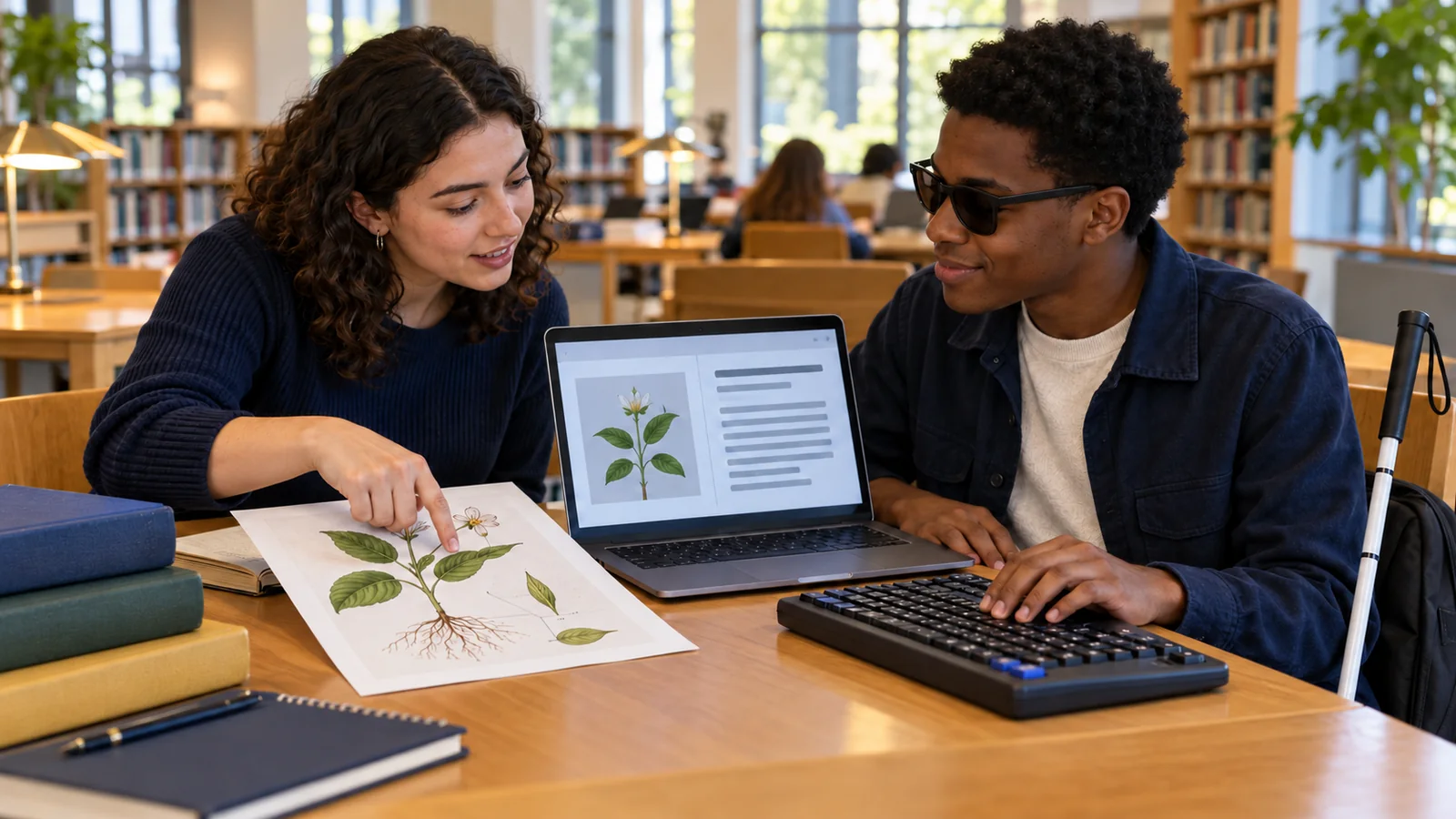
Think through the activity from beginning to end. Can the learner find and open the material? Can they navigate it using their preferred input method? Can they create an answer, save it and share it in the required format? A successful first step does not establish that the rest of the workflow is accessible.
CAST’s Universal Design for Learning guidance emphasises that providing a tool is not enough: learners also need support to use it, and teaching materials must work with the access methods involved. It discusses options such as keyboard, switch and voice interaction. This is an educational design framework, not a Canadian entitlement or a product certification. Read CAST’s guidance on accessible tools and materials.
Include ordinary practical details in the conversation. Who charges the device? Where are headphones stored? What happens if a password is forgotten or the network is unavailable? Who updates the document when a teacher changes the task? These questions are part of making an option usable, rather than an afterthought once equipment has arrived.
Use a short trial sheet
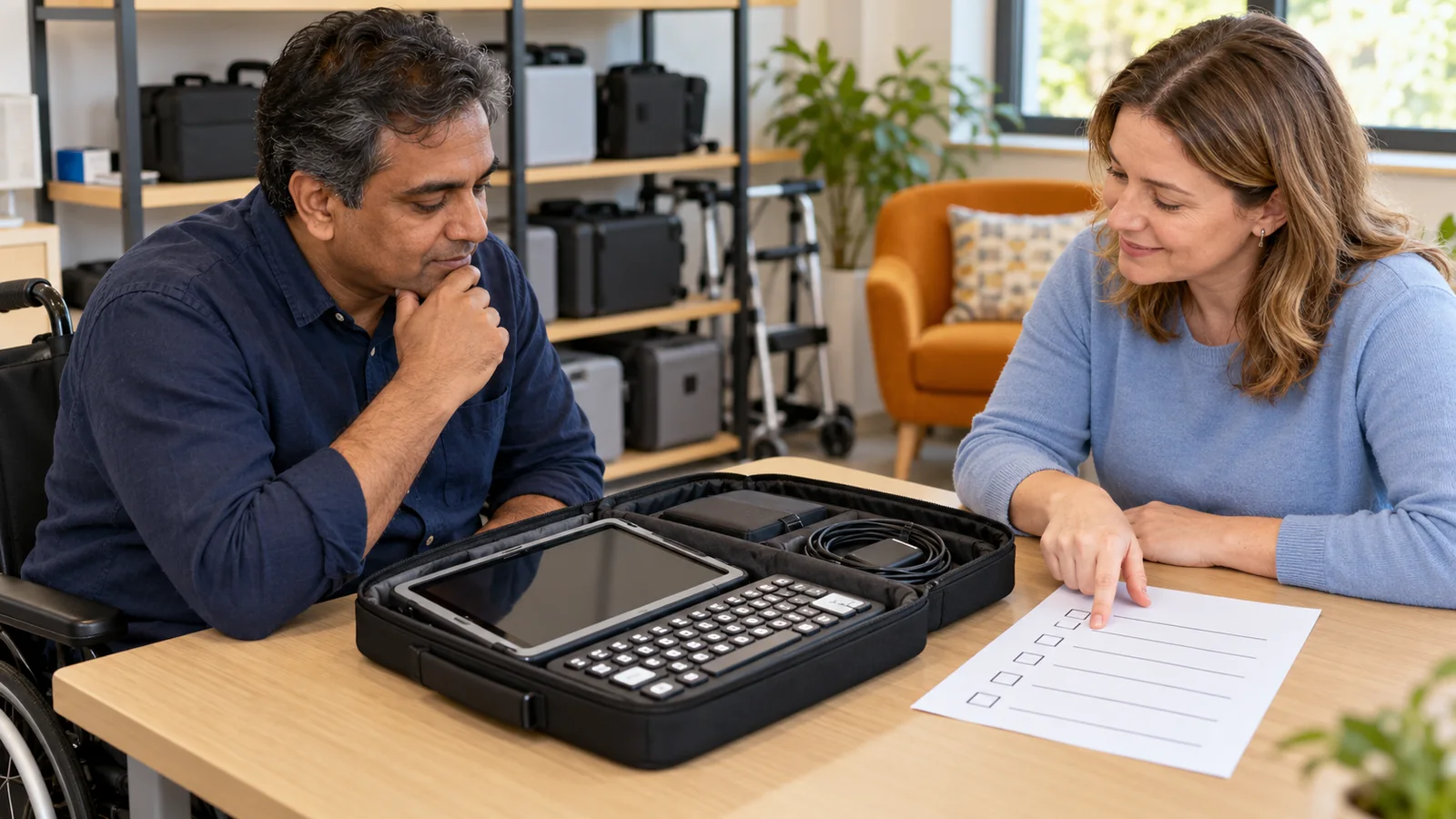
The table below is an original planning aid, not a validated assessment instrument. Adapt it with the learner and relevant school staff. Choose a task that resembles the activity you want to support, and explain what you are trying to learn before the trial begins.
| Question | What to record | Illustrative example |
|---|---|---|
| What is the goal? | A meaningful activity, not a device feature | Follow the instructions and submit a short response |
| What is being tried? | Tool, settings and materials | An accessible document with the learner’s preferred navigation method |
| What support is available? | Who explains, sets up and troubleshoots | A staff member checks access before the lesson |
| What happened? | Access, effort, errors and learner comments | Reading worked; saving the response still required help |
| What comes next? | Keep, adjust, seek advice or try another option | Clarify the save process before repeating the task |
Avoid changing several things at once if that makes the result impossible to interpret. If the material, room, input method and level of adult help all change, record those differences. The aim is not to prove that a favourite product works; it is to understand what made participation easier or harder.
Give the learner a way to comment privately or later. A quick “Was that good?” in front of a group can leave little space to describe discomfort or embarrassment. Ask more specifically: “Which part would you choose to use again?” and “Was anything harder than before?” Keep their words distinct from the observer’s interpretation.
Check cost, compatibility and data before committing
Ask for the total expected cost, including accessories, training, subscriptions and replacement arrangements. Find out who owns the device or account and what happens when the learner changes schools. Do not assume that a demonstration, loan or classroom trial guarantees ongoing access.
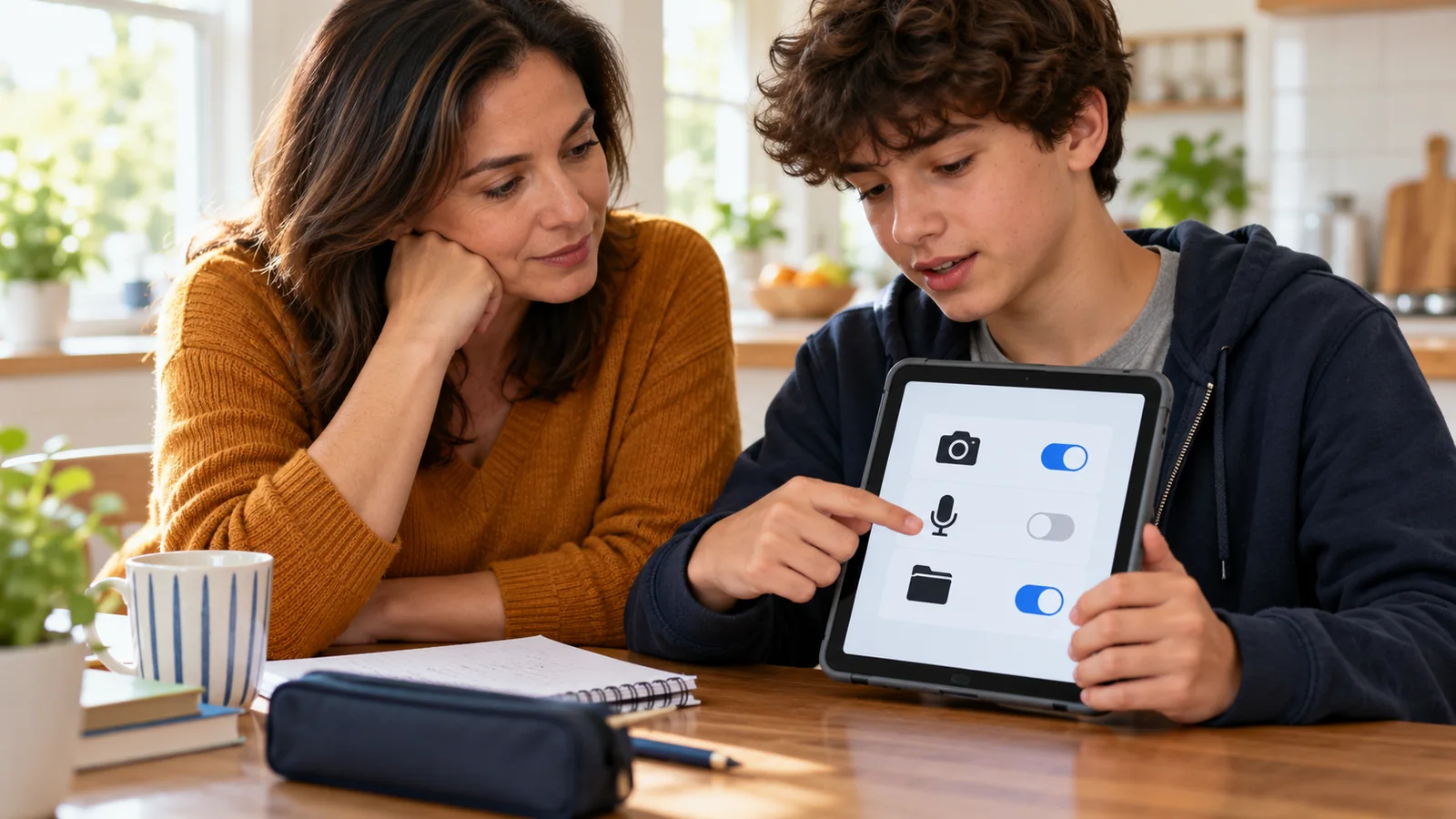
Before entering personal information or uploading student work, ask the school which services are approved and what data they receive. Check whether the task can be demonstrated with non-sensitive sample material. Product privacy notices, account requirements and school rules can change, so use the current documents for the actual tool under consideration.
For compatibility, test the files and platforms the learner will use. A demonstration with a vendor’s sample document may not reveal a problem in the school’s own worksheet. Record the relevant software and device versions with your observations, so that a later change can be investigated rather than mistaken for user error.
Review the setup without blaming the learner
If the trial is unsuccessful, ask whether the learner had access to suitable materials, clear instructions and adequate support. Identify the particular stage that failed. A tool being available in a cupboard is different from being ready at the moment it is needed.
Retain useful findings even when you choose another option. Knowing that a learner prefers a quiet input method, needs fewer navigation steps or wants a portable backup can guide the next discussion. The result can be a better question rather than an immediate purchase.
Common questions
Should we buy a device before speaking to the school?
First ask what devices, formats and accounts the school supports, and whether a trial or assessment route is available. A purchase made before those details are clear may leave you with an option that does not fit the intended classroom activity.
Can built-in accessibility features be enough?
They may be worth considering, but suitability depends on the task and the learner. Test the relevant feature with the actual material and access method. The fact that a feature is already available does not establish that it meets every need.
How long should a trial last?
Agree on a period that allows the relevant activity to happen and the learner to understand the option. A new workflow may require practice. This guide does not set a universal duration; record what opportunity and support were actually provided.
What if the learner prefers their existing method?
Ask what they value about it and what problem the proposed change is meant to address. Preserve useful preferences in the comparison. If the existing method meets the goal, explain why another option is being considered before asking them to change.
Is faster work always a better result?
No single measure captures the whole experience. Consider access, accuracy, fatigue, independence, choice and the learner’s view of the task. Decide which observations matter for the particular goal, rather than treating a shorter completion time as sufficient evidence.
Who should provide training?
Agree this before the trial. Ask the school or provider who understands the tool, who will help the learner practise and who handles technical faults. Separate initial demonstration from ongoing support so that neither is assumed to happen automatically.
What if the tool works at home but not at school?
Compare materials, accounts, network access, room conditions and available support. Identify what differs before concluding that the learner cannot use the tool. Ask the school to help check its own systems and approved configuration.
Should every learner use the same technology?
A shared school platform may simplify some arrangements, but individual access needs still require attention. Describe the task and preferred method for each learner. Ask how the common platform works with necessary alternatives and what happens when it does not.
What should a backup plan contain?
Name a practical way to continue the essential activity if the usual option is unavailable. Explain where the backup is kept and who can arrange it. Test whether it is usable; a backup that the learner cannot access is only a written intention.
When should the choice be reviewed?
Review it when tasks, preferences, settings or software change, or when the learner reports a new difficulty. Keep a short record of what previously worked. That makes it easier to distinguish a changed requirement from a technical problem.
Sources
Opened and checked on 21 October 2026. Trial questions and examples are original editorial planning aids, not a clinical assessment or product endorsement.
- WHO: Assistive technology — definition and range of products and services, 2024.
- SET-BC: Assistive Technology in the Classroom — student-need selection principle; the provider flags the modules’ 2016 origins.
- CAST UDL Guidelines 3.0: Accessible materials and technologies — access methods, compatible materials and support for use.