Assistive Technology
Screen Magnification, Contrast and Text Size: Accessibility Settings to Explore
Separate text size from interface scale, then check reading, navigation and how to reverse the change.
Archive edition: 5 September 2026 · assigned for archive organisation

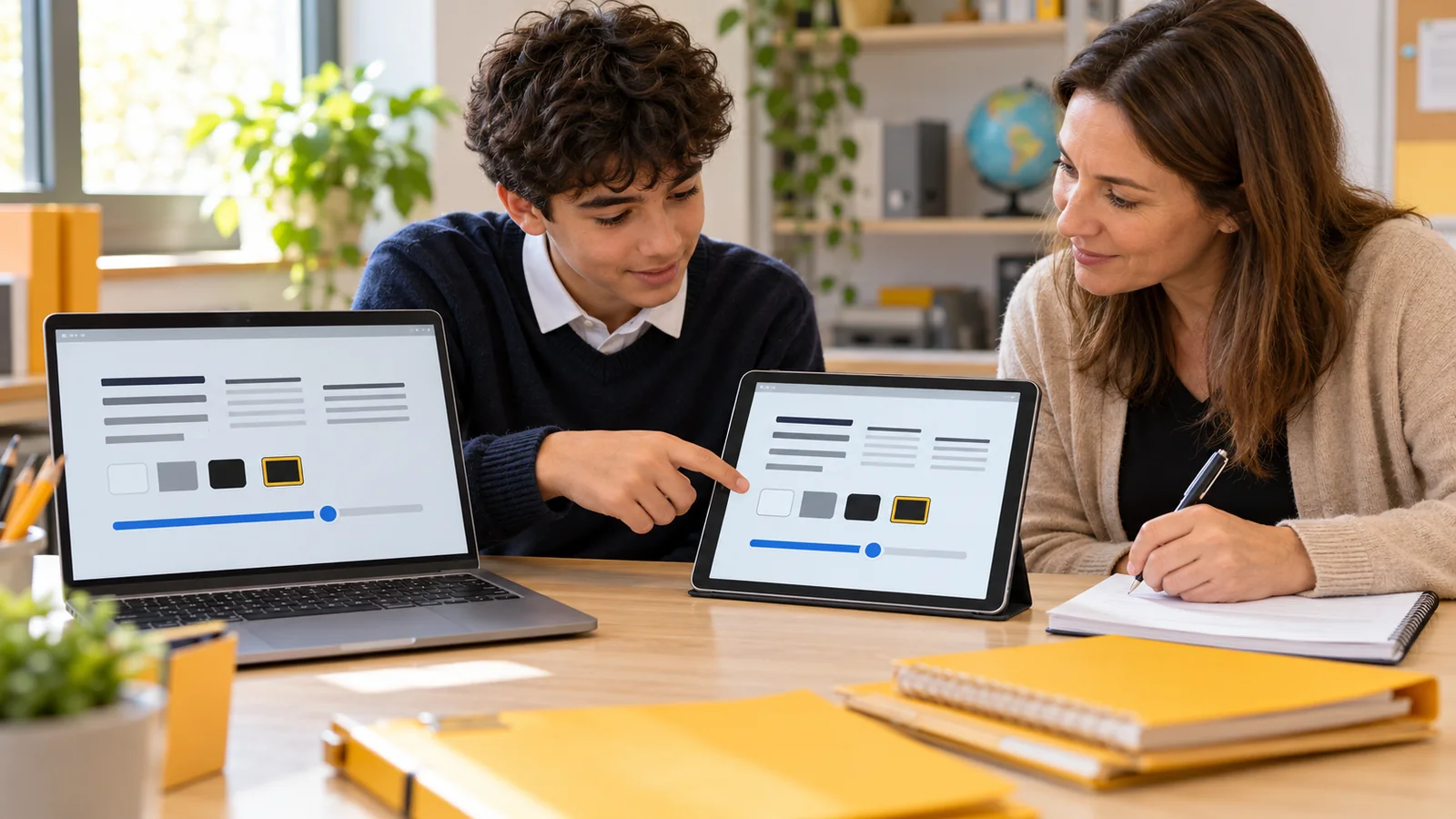
If a screen is difficult to read, begin by identifying what needs to change. Small letters, tiny buttons, weak contrast and losing the pointer are different problems. A setting that helps one may leave another unchanged.
This guide explains documented options on iPhone, Android and Windows, then offers a small trial you can adapt. The instructions were checked on 21 October 2026. They are starting points for supported devices, not a claim that every app responds identically or that a display setting treats a visual or sensory condition.
At a glance
- Distinguish text size, overall display size, magnification and contrast.
- Try the change in the app and task you actually use.
- Learn how to return to the previous view before making a large adjustment.
- Check buttons, forms, diagrams and navigation as well as a sample paragraph.
Identify the reading problem
Describe a concrete task: reading an appointment time, finding a button in a school app, following a document or locating the cursor while typing. If somebody is helping, ask the user what they find difficult rather than choosing settings based on the helper’s own preferences.
Then separate size from presentation. Text can be large but still hard to distinguish from its background. A readable paragraph does not guarantee that a small menu is usable. A magnified view can make details visible while requiring more movement around the screen.
Use a familiar, non-sensitive example for the first adjustment. Keep the original task available so you can compare the experience. There is no need to change several devices or every visual setting at once.
Understand what each control changes
| Control | Main purpose to investigate | What to check in use |
|---|---|---|
| Text size | Make supported interface or content text larger. | Does the relevant app respond, and does text remain complete? |
| Display size or scaling | Enlarge more of the interface, including elements beyond text. | Can you still reach menus, buttons and the full workflow? |
| Magnification | Inspect part or all of a screen at a larger scale. | Can you move around, find context and return to the normal view? |
| Contrast or colour settings | Change distinctions between foreground, background and interface elements. | Are links, selected items and status indicators still understandable? |
| Pointer or cursor settings | Make the current pointing or typing position easier to locate. | Does it remain visible against the content you work with? |
The labels differ between platforms. Use the table to identify the kind of change you need, then consult the matching device instructions. An app’s own zoom control may affect only its document, while a system setting may affect several parts of the interface.
iPhone: try supported text controls first
Apple’s current guide describes Settings → Accessibility → Display & Text Size → Larger Text, with a slider and an option for additional accessibility sizes. Bold Text is a separate control. Apple also distinguishes Display Zoom, which enlarges interface elements as well as text. Read Apple’s text-size instructions.
Try the setting in the app that caused the problem. Check a message, a menu and the button needed to continue. If a particular app does not behave as expected, look for its own options or ask its provider about accessible presentation rather than assuming the whole phone is configured incorrectly.
Android: distinguish font and display size
Google documents separate Font size and Display size settings, searchable from the device’s Settings app. It notes that font-size changes do not apply to some apps and that some instructions require Android 13 or later. Read Google’s text and display guide.
Compare the two controls separately. A larger font may solve a paragraph problem without giving you the larger buttons you wanted. A broader display change may alter how much fits on screen. Check the result instead of using the slider position as a measure of success.
Keep manufacturer differences in mind. If your phone’s labels or available options differ, use its support instructions. Do not download an unfamiliar utility simply because a menu does not match an online example.
Windows: text, scaling, contrast and Magnifier
Microsoft’s Windows 11 instructions separate Settings → Accessibility → Text size from Settings → System → Display → Scale. Contrast themes are under Accessibility. Its guide also describes Magnifier and pointer options. Read Microsoft’s display-accessibility overview.
For a Magnifier trial, Microsoft documents Windows key plus the plus sign to open it and increase magnification, Windows key plus minus to reduce it, and Windows key plus Escape to close it. Learn the closing shortcut before exploring a highly enlarged view.
Check the complete task after changing scale or contrast. Open the relevant dialogue, find the controls, move between fields and return to the main document. A useful setting should support those steps, not merely make a screenshot look clearer.
Try a complete task, not just a preview
- Describe. Name the part of the task that is hard to see or navigate.
- Adjust. Change one relevant control and keep a way to reverse it.
- Use. Complete the real task, check what changed and retain the setting only if it helps.
For example, a person may enlarge text to read a calendar appointment. The preview looks good, but the location line is cut off in the calendar view. The next question is whether opening the appointment, changing the view or using another accessible format makes the full information available. Making the text smaller again is not the only possible response.
Check colour-dependent information too. If a school portal marks a selection only by colour, changing the theme may expose an existing accessibility problem. Look for a text label or another indicator, and report the specific issue to the provider if the task remains unclear.
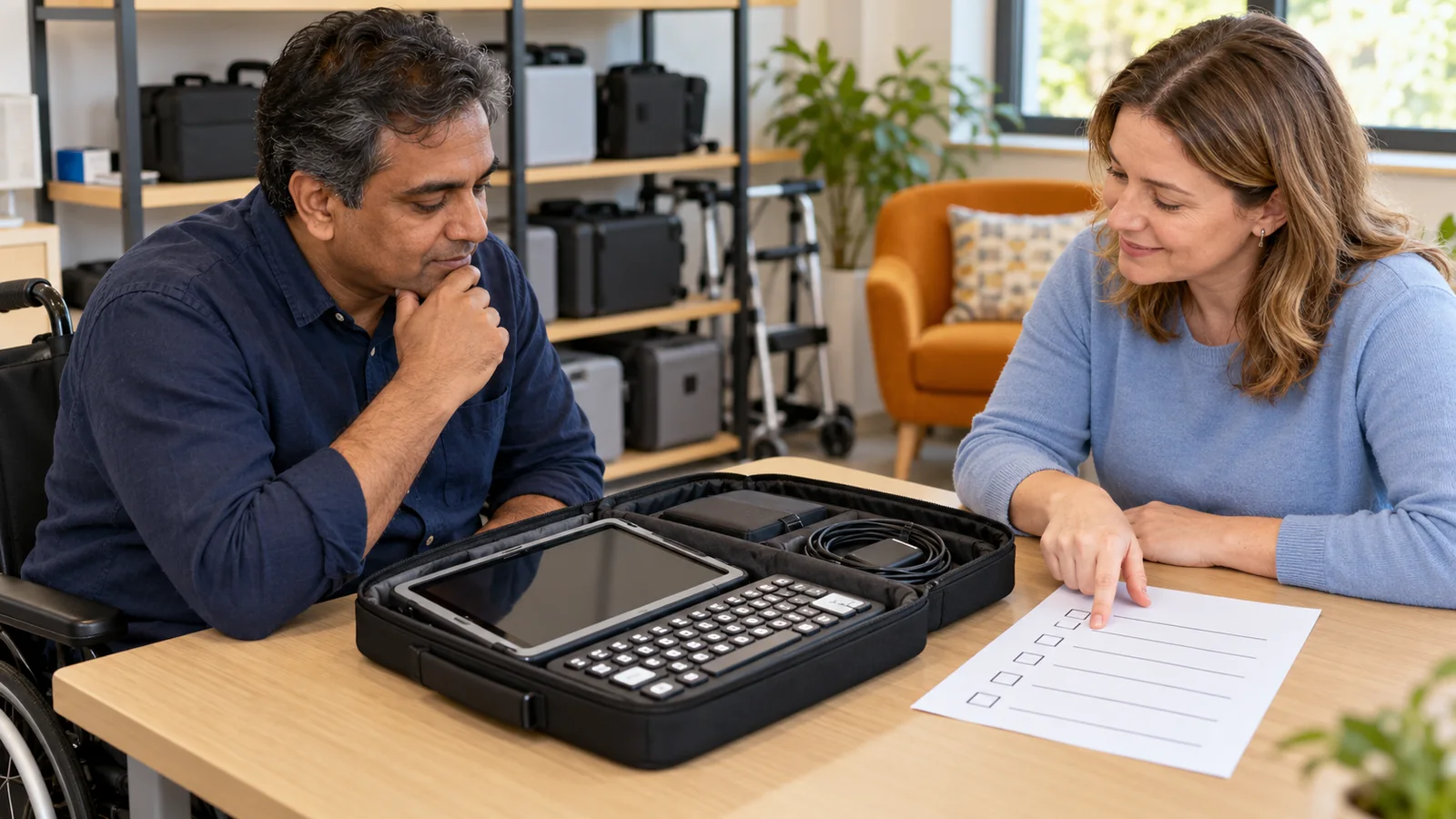
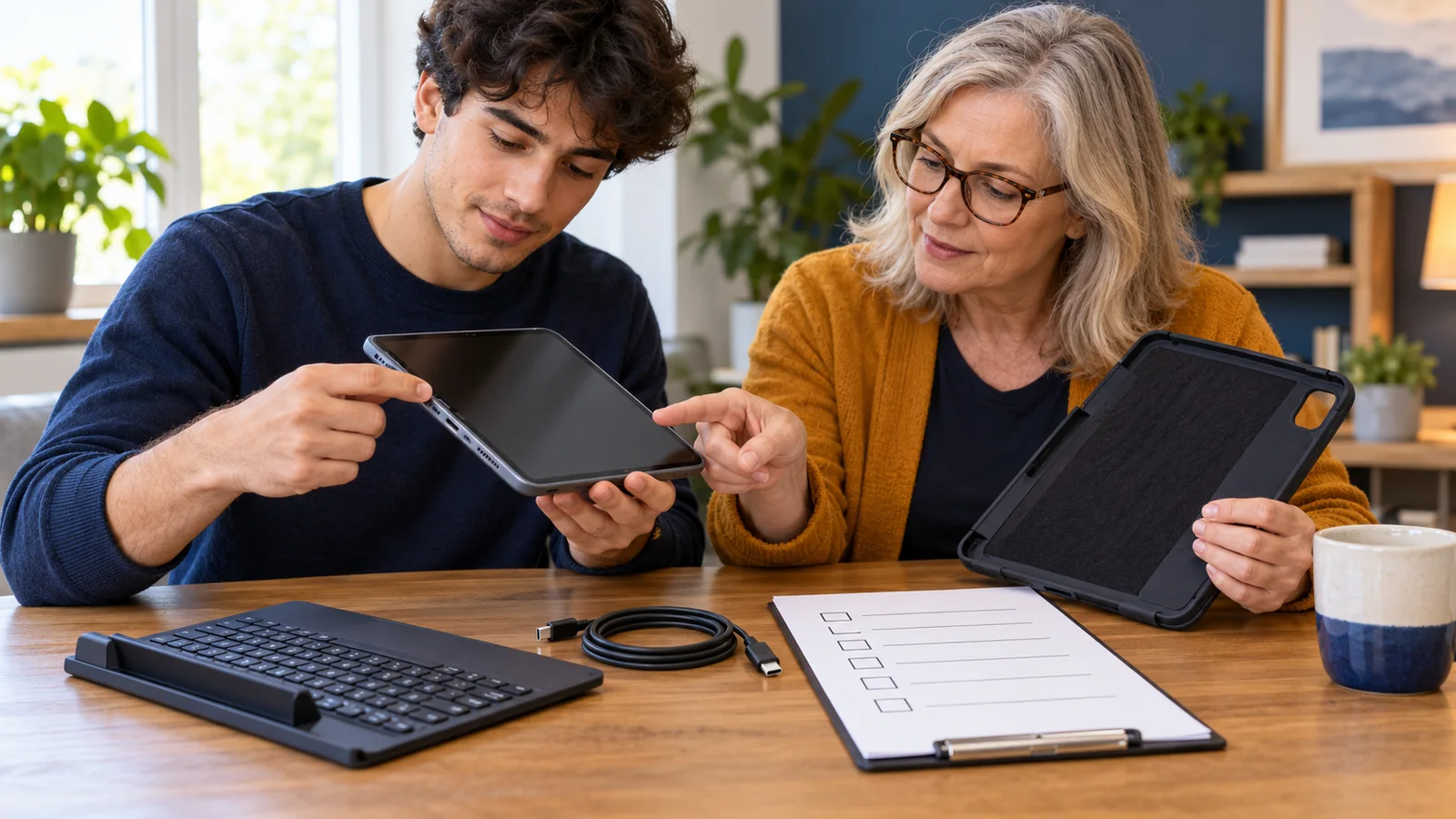
Keep a brief record of the useful settings and the app tested. On a shared device, agree how another user can restore their preferred view. On a managed device, ask the school or workplace for help if a relevant control is restricted.
Common questions
Should I start by increasing brightness?
First identify whether brightness is the problem. Small text, poor contrast or glare may require a different change. Compare one adjustment in the actual setting where you use the device and ask whether it helps rather than assuming brighter is always better.
What is the difference between larger text and magnification?
Text-size controls change supported text presentation. Magnification enlarges the view of part or all of a screen and may require moving around to see context. Try the option that addresses the task and learn how to return to the previous view.
Why did one app ignore the font-size setting?
System text settings do not affect every app in the same way; Google’s guide explicitly notes exceptions. Check the app’s own accessibility or display options and ask its provider about the specific content that remains too small.
Is dark mode always easier to read?
No universal preference is assumed here. Compare the available appearance in your normal lighting and check text, links and selected controls. A dark background and a high-contrast theme are not interchangeable descriptions of every interface.
What if larger text gets cut off?
Check whether another view exposes the full information and whether the app offers an accessible alternative. Record the exact screen and setting when reporting the problem. Truncated content can be an app layout issue rather than a reason to abandon the preferred text size.
Can I change only one app?
Some platforms and apps offer more specific controls, but availability varies. Consult the relevant documentation and test the scope of the change. Do not assume that a document zoom setting changes the app menus or the rest of the device.
How do I avoid getting lost in an enlarged view?
Start with a modest change and learn navigation and exit controls first. Practise on a familiar screen with someone available to help if wanted. In Windows Magnifier, the documented Windows key plus Escape shortcut closes the tool.
Can a supporter choose settings for someone else?
They can assist with the person’s agreement, but the user’s experience should guide the choice. Explain each change, ask for feedback and retain a way to reverse it. Avoid treating the helper’s preferred font or colour as the correct answer.
What should I check on a school device?
Check whether the relevant settings are available and whether the learning apps remain usable. Ask the school’s support team about restrictions or app problems. An accessible display arrangement should work through the actual assignment, including reading and submitting it.
When should I revisit the settings?
Review them when the device, software, lighting or task changes, or whenever the person says the arrangement is no longer comfortable. Keep the useful configuration as a starting point, not a permanent rule that cannot be adjusted.
Sources
Official documentation opened and checked on 21 October 2026. The iPhone and Android text guides were also read in the browser after retrieval limitations. Windows instructions here refer to the Windows 11 section. No cross-device usability or clinical outcome test is claimed.
- Apple: Make text easier to read on iPhone — iOS 27 guide.
- Google: Change text and display settings — version and app limitations stated.
- Microsoft: Make Windows easier to see — text, scale, contrast, pointer and Magnifier controls.