Assistive Technology
Speech-to-Text for Schoolwork: Privacy and Accuracy Questions
Trial the complete speech-to-text workflow, from the student’s ideas to an accurate finished draft.
Archive edition: 30 August 2026 · assigned for archive organisation
On this page
Speech-to-text can turn spoken words into a written draft, but the useful question is whether the whole task becomes more accessible. A student still needs a way to plan ideas, notice errors, edit the result and submit work in the required format. A microphone button alone does not answer those questions.
This guide offers a trial checklist for schoolwork, with examples from current vendor documentation. It is not a product ranking or a claim that a particular service was tested with a student. Device versions, school accounts, languages and administrator settings can change what is available.
Define what speech-to-text is meant to help
Identify the barrier first. The student may find handwriting difficult, lose ideas while typing or need another way to create a first draft. Speech-to-text may be useful for one part of a task while a keyboard, drawing or other method remains preferable for another.
Clarify the learning goal with the teacher. A task assessing scientific understanding may have different requirements from an exercise explicitly assessing spelling or transcription. Ask which input tools are permitted and how the student’s own work will be demonstrated.
Distinguish dictation from tools that generate or rewrite content. Speaking your own sentence into a document is a different process from asking a system to compose the answer. Check the school’s rules for each function instead of treating every feature in the same app as equivalent.
Confirm the actual device and account
Google’s voice-typing documentation currently identifies supported browsers and notes that an organization’s administrator can disable the feature. It also explains that the browser controls speech processing before text is sent to Docs or Slides. Check the actual school browser and account rather than assuming all devices work identically.
Microsoft’s desktop Word dictation documentation describes a Microsoft 365 account, microphone and reliable internet connection. It also notes that some preview languages can have lower accuracy or limited punctuation support. These are vendor-documented conditions, not an independent performance comparison.
Record the device, operating system, application version, account type, language and microphone used for the trial. If the home and school setups differ, test the needed workflow in both with permission. A successful demonstration on an adult’s personal device does not establish access on a managed school laptop.
Run a small, meaningful trial
| Stage | What to try | What to observe |
|---|---|---|
| Plan | Use a brief outline or picture prompt | Can the student decide what they want to say? |
| Capture | Dictate a short passage in their usual language | Which words, pauses or commands are recognized? |
| Check | Review the text using a preferred reading method | Can the student notice errors that change meaning? |
| Correct | Fix names, punctuation and a missing word | Is correction accessible and reasonably manageable? |
| Submit | Save and provide the required file | Does the work remain usable in the school workflow? |
Use a short, non-sensitive task initially. Include a few words that matter in the subject, such as a character’s name or a science term. Do not use a polished demonstration passage as the only evidence of fit.
Ask the student about effort as well as speed. Speaking continuously, watching the screen and correcting mistakes can be demanding. A system that produces words quickly may still create an exhausting editing task.
Check meaning, not just the number of errors
A missing “not,” an incorrect number or a changed name can alter the meaning of a sentence even when most words look right. Review the result against what the student intended. Do not assume that fluent-looking text is accurate.
Notice whether the student can identify errors independently, with read-aloud support or with agreed assistance. Try correction through the input method they can use comfortably. The value of dictation depends partly on what happens after recognition makes a mistake.
If accuracy varies, record the conditions instead of blaming the student’s speech. Compare language settings, microphone placement, background noise and the type of vocabulary. Seek relevant specialist help if access remains difficult. This guide does not establish a minimum accuracy score that makes a tool suitable for everyone.
Ask privacy questions before enabling the microphone
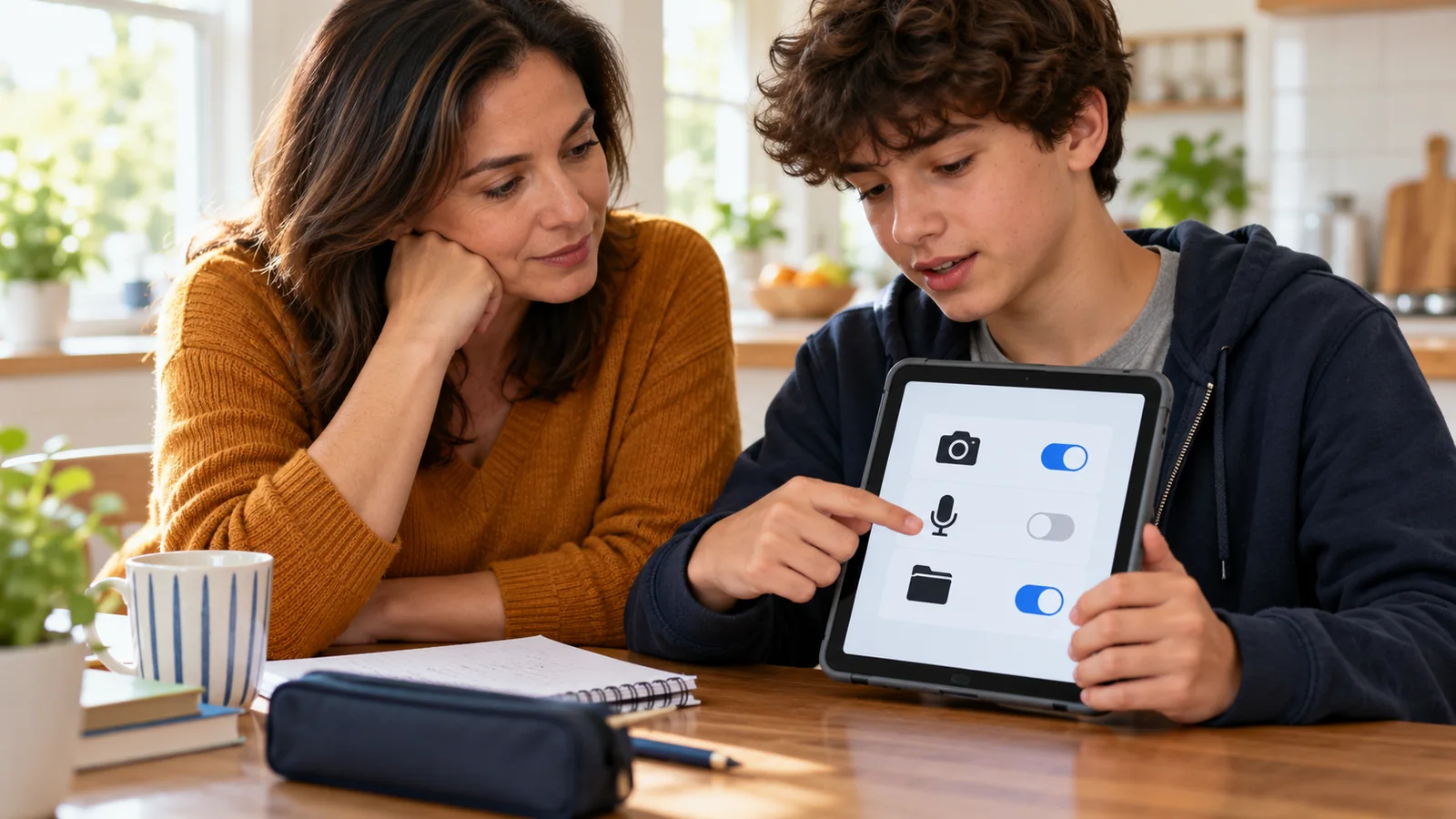
A microphone permission is a technical setting, not a complete explanation of data handling. Ask whether speech is processed locally or sent to a service, whether audio or text is retained, who can access the resulting document and what the school permits for student information.
The Office of the Privacy Commissioner of Canada’s app guidance encourages checking information collection and permissions. Apply that principle to the actual feature and account. Do not assume a vendor’s statement about one dictation service describes every recording, transcription or AI feature in the same product family.
Consider people nearby. A classroom microphone may capture another student’s speech or private discussion. Agree where and when dictation can be used without unnecessarily recording others. Stop the microphone when the task ends and confirm that the interface shows it is no longer listening.
For sensitive school, health or family information, ask the responsible school contact about approved tools and settings before using it in a trial. A sample paragraph about a fictional topic can test the workflow without exposing a real report.
Fit the tool into the classroom
Discuss where speaking aloud is practical and how the student can access that setting without missing the lesson unnecessarily. A quiet space can help some tasks, but moving away from classmates every time may create a different participation barrier.
Agree how the student will switch methods when dictation is unsuitable. This might involve typing, selecting a different response format or using an agreed support. Keep a fallback for an unavailable microphone, network problem or disabled feature.
Check headphones, microphone comfort and setup effort with the student. Expensive equipment should not be the first assumption when the basic workflow has not been explored. No microphone, app or subscription is recommended by this checklist.
- Prepare: confirm the task, approved setup and privacy boundaries.
- Try: dictate, review, correct and submit a short piece of work.
- Decide: compare access and effort, then agree the next step.
A practical example
In this fictional example, Dev has ideas for a history paragraph but finds typing them slow. He tries dictating from a three-point outline. The tool captures most of the passage but repeatedly changes a person’s name. Dev uses read-aloud support and a keyboard shortcut to find and correct the errors.
The teacher and Dev compare the complete task, including editing time and effort. They agree that dictation is useful for some first drafts and identify a different method for short answers in a quiet shared classroom. The result is a specific arrangement, not a claim that speech-to-text is always the best option.
Common questions
Is speech-to-text the same as text-to-speech?
No. Speech-to-text converts spoken input into text. Text-to-speech reads written text aloud. They can support different stages of the same task.
Does dictation write the answer for the student?
Ordinary dictation captures the student’s spoken words. Generative or rewriting features do something different. Confirm which functions are permitted for the assignment.
Should we judge the tool only by speed?
No. Include planning, correction, saving and submission, as well as the student’s effort and comfort. Fast capture may still require difficult editing.
Will it work equally well in every language?
Do not assume so. Check the current language support and trial the student’s actual language, vocabulary and pronunciation in the intended setting.
Why does it work at home but not at school?
Compare the account, browser, device, administrator settings, network and microphone. The feature may have different availability or permissions on a managed school device.
Can a student use it during a test?
Ask about that assessment’s rules and agreed accommodations in advance. Availability in an app does not establish permission for every test.
Does a microphone permission mean audio is stored?
Permission alone does not answer storage or processing questions. Read the feature-specific documentation and ask the school about its approved setup.
What if the student cannot easily correct errors?
Trial an accessible correction method and relevant support. If correction remains a major barrier, reconsider the workflow rather than treating word capture as the only goal.
Do we need to buy a special microphone?
First test the available approved setup and identify the actual problem. Ask for appropriate advice before purchasing equipment based only on a generic recommendation.
When should the arrangement be reviewed?
Review after a meaningful trial and when the task, language, device or software changes. Keep the student’s preference and participation central to the decision.
Sources and scope
Vendor documentation was read for feature conditions and processing context; no microphone was activated and no student data or audio was submitted. The trial framework is original editorial guidance, not a product test or performance guarantee.
- Google Docs Help: Type and edit with your voice — browser, administrator and speech-processing context.
- Microsoft Support: Dictate your documents in Word — desktop requirements and language considerations.
- Office of the Privacy Commissioner of Canada: App privacy guidance — permissions and information-collection questions.