Assistive Technology
Switch Access and Alternative Input: Questions for an AT Specialist
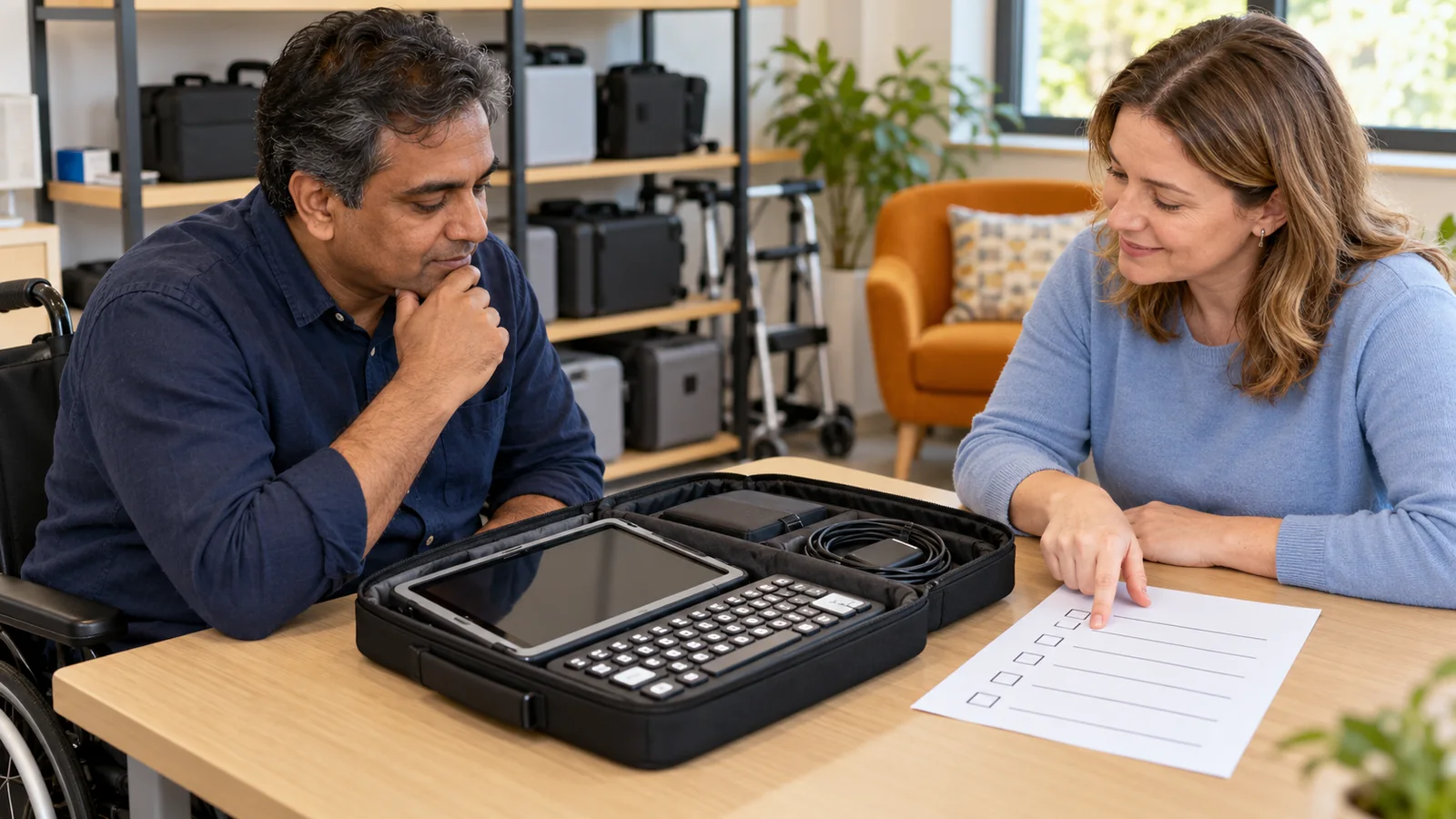
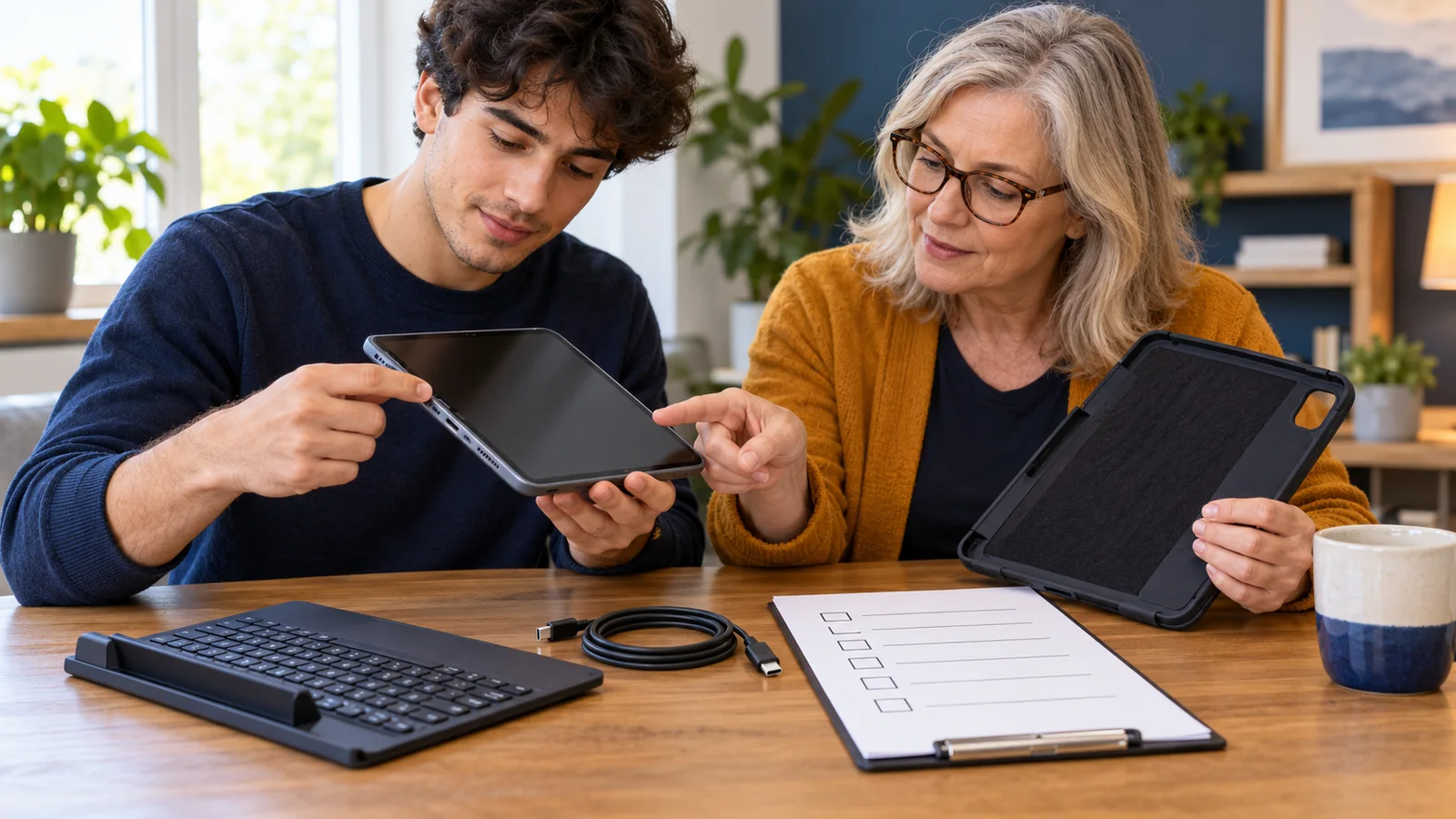
Trial the complete activity, including selection, correction and stopping, with the person and their specialist.
Archive edition: 11 September 2026 · assigned for archive organisation
On this page
- At a glance
- Describe the task before choosing a switch
- Understand scanning and selection
- Ask about a comfortable, repeatable setup
- Compare settings with a meaningful task
- Use a trial checklist beyond the first button press
- Test the contexts that matter
- Prepare support and backup access
- A practical example
- Common questions
- Sources and scope
When a touchscreen, standard mouse or keyboard is difficult to use, alternative input can create another route to the same activity. Switch access is one option: the person uses an available movement or other supported input to select items and perform actions. The useful question is how the whole arrangement works for the person, not whether they can press a particular button once.
This guide prepares questions for an assistive technology specialist and a practical trial. It explains selected platform features without prescribing a switch, body position or clinical intervention. The person’s goals, comfort and communication should shape the process from the beginning.
Describe the task before choosing a switch
Bring two or three examples of what the person wants to do. These might include choosing a song, contributing to a classroom discussion, writing a message or navigating an online learning activity. Each involves different screen layouts and actions.
Describe what already works and where access breaks down. Perhaps large buttons are manageable but small menus are difficult, or a method works briefly but becomes tiring. These observations help the specialist choose what to explore without treating one difficult moment as a complete account of the person’s abilities.
Ace Centre’s alternative-access overview describes assessment across mouse alternatives, switches, eye gaze and onscreen presentation. Its UK service illustrates why the question is broader than buying a switch. Local assessment routes and eligibility differ; the page does not establish access to services in Canada.
Understand scanning and selection
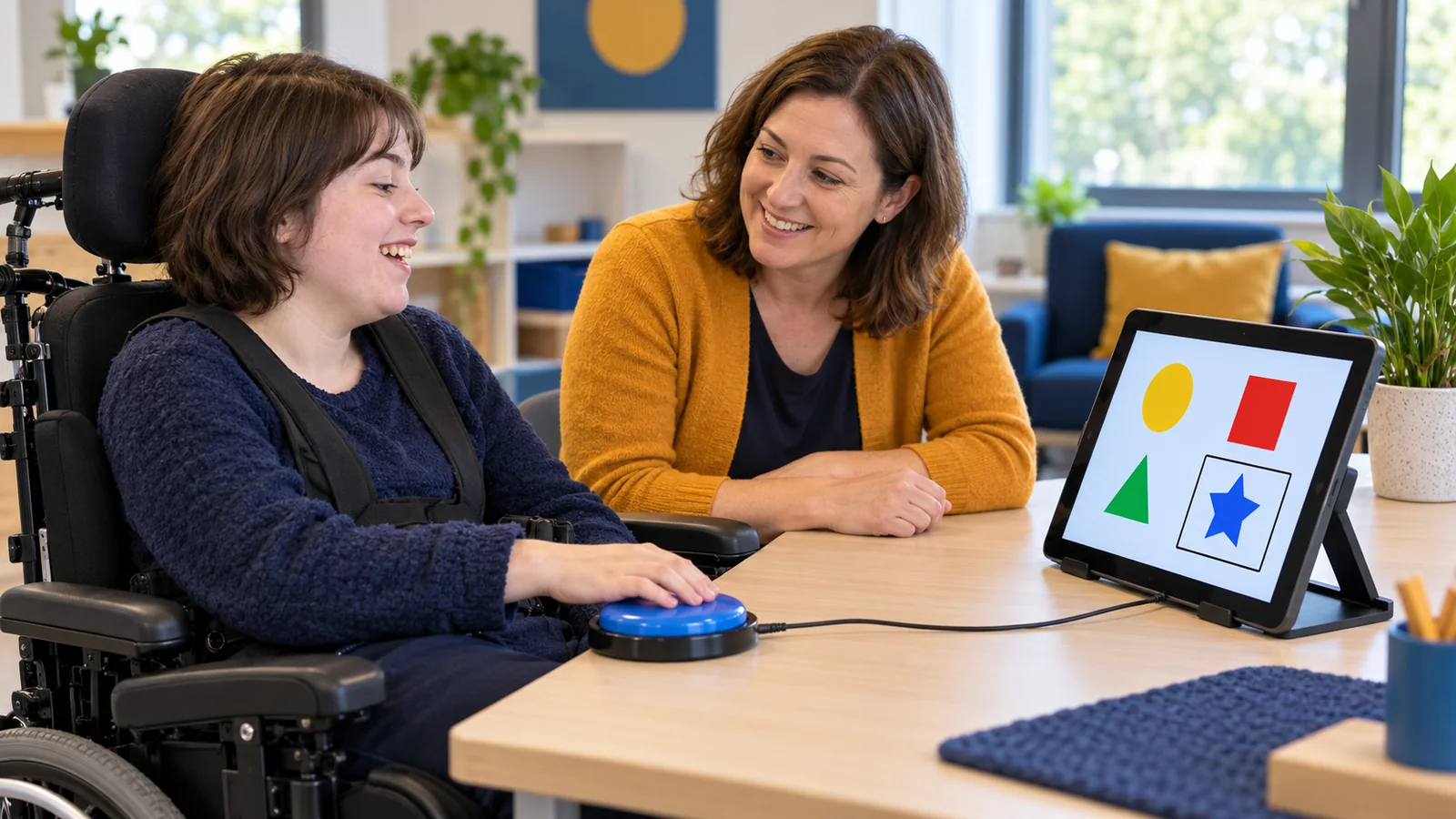
Google’s Android Switch Access documentation describes highlighting screen items in sequence until the user selects one. It also describes external switches and the possibility of assigning keys on a connected keyboard. This is a platform example, not a guarantee that every switch, app or device combination will work.
Ask the specialist to explain the proposed interaction in plain language. What moves the highlight? What selects an item? Does the person wait for automatic movement, use another switch to move through choices or use a different method? The answer should be understandable to the person and those supporting the trial.
A switch is only one part of the chain. The connection, operating system, application and onscreen content all affect what can be reached. A successful connection notification does not show that the person can complete the intended activity.
Ask about a comfortable, repeatable setup
Discuss which movements the person wants to use and how the specialist will evaluate them. Include comfort, consistency and the person’s own experience. Do not choose a movement simply because it is the first one an observer notices.
Ask who will assess and arrange positioning, mounting and any interaction with seating or other equipment. A setup should be practical to reproduce in the places where it is needed. Family members or educators should not be expected to improvise clinical positioning or equipment modifications from a short demonstration.
Clarify how the person can request a pause or stop the trial. If they appear uncomfortable or report fatigue, record that feedback and adjust the plan with the relevant professional. Repeated attempts should provide useful information, not become a test of willingness.
Compare settings with a meaningful task
Apple’s Switch Control guide describes adjustable scanning styles and speed, selection behaviour, repeated-input handling and visual or spoken scanning feedback. These controls show why default settings are only a starting point. Availability and details depend on the actual device and software.
Change one relevant setting at a time when practical, and record what changed. If the scan is too fast, the person may miss a choice; if it is too slow, the task may take more effort than necessary. Ask the person which arrangement feels usable rather than selecting speed solely for an observer’s convenience.
Include an accidental selection in the trial. Can the person undo it, return to the previous screen or ask for help? A system that permits selection but makes correction inaccessible may not support the independence the person is seeking.
Use a trial checklist beyond the first button press
| Area | Question for the team | Useful observation |
|---|---|---|
| Goal | Which complete activity are we testing? | The person’s intended outcome |
| Input | How will the selected action be activated? | Comfort and repeatability in context |
| Scanning | How are choices reached and selected? | Missed, repeated or unintended selections |
| Correction | Can the person undo, back out or stop? | Access to recovery controls |
| Applications | Does the method work in the actual required app? | Any unreachable controls or screens |
| Support | Who can reproduce and troubleshoot the setup? | Training, documentation and backup needs |
Record the device, software version, input connection and relevant settings. Keep the record descriptive: “selected the intended item after adjusting the scan interval” is more informative than “good session.” Include assistance provided so that supported performance is not mistaken for independent operation.
Test the contexts that matter
Ask whether the trial can include more than one ordinary setting or time of day when relevant. Desk height, screen position, transportation and available support may differ between a clinic, classroom and home. A promising result in one setting is useful evidence, but it does not answer every everyday question.
Test the full activity using non-sensitive practice content first. For a message, this includes composing, reviewing and correcting it, not only opening the keyboard. For a learning task, include navigation to the activity and the way the completed work is saved.
Do not interpret a difficult app as proof that the person cannot use switches. Ask whether the barrier lies in the input, scanning settings, content layout or application’s accessibility. The response may involve changing the task presentation or using another access route.
- Define: name the person’s goal and current access barriers.
- Trial: compare a supported setup during the complete activity.
- Review: document preferences, remaining barriers and the next adjustment.
Prepare support and backup access
Before a loan or purchase, clarify what is included: switch, interface, cables, mounting, software, setup and training may be separate items. Ask who handles compatibility problems and what happens if the equipment needs repair. Get the relevant terms in writing.
Agree how settings will be documented and restored with the person’s permission. Include an accessible way to exit the scanning mode and a support contact for problems. Avoid changing the person’s established configuration without explaining the change and preserving a way back.
If the system supports communication, retain other available communication methods during setup, charging or downtime. Access to a new device should expand the person’s options rather than remove familiar ways to express preferences, disagreement or a need for help.
A practical example
In this fictional example, Priya wants to choose music and send short messages on a tablet. A specialist helps trial a switch and scanning arrangement. Priya can select a large music control, but the message application’s menus are harder to navigate.
The team records the difference instead of describing the whole trial as a failure. They adjust the scanning setup, explore the application’s controls and practise correcting an unintended choice. Priya’s feedback about effort and speed guides the comparison.
Before a longer loan, they document the setup and agree who can help at home. The next review considers the complete activities and Priya’s preferences, rather than counting button presses alone.
Common questions
Is a switch always a large button?
No. Input options vary. A specialist can help explore suitable methods and connections around the person’s available actions and goals.
Does one successful press prove a setup will work?
No. Trial repeatable access, complete activities, correction and stopping in the relevant setting, with the person’s feedback.
Is one switch better than two?
Neither arrangement is universally better. Compare how choices are reached and selected, along with comfort, effort and the intended task.
Will every app support the same access method?
Do not assume so. Test the actual app, account, device and software version, including menus and recovery controls.
Should scanning be as fast as possible?
No. Find a pace the person can use comfortably and effectively. Speed is one part of the whole task.
Who should decide where a switch is positioned?
Include the person and the appropriate specialist. Seek relevant professional input where positioning interacts with seating, movement or other equipment.
What if accidental selections happen?
Record when they occur and review the setup. Test correction controls and relevant settings instead of assuming the person is not trying.
Can a keyboard be used in a trial?
Some platforms support assigning keyboard keys as switch actions. Confirm the actual configuration and whether it answers the person’s trial goal.
What should a loan include?
Clarify the complete equipment, software, setup, training, return conditions and technical support. A switch alone may not be a usable system.
When should we review the arrangement?
Review after a meaningful trial and when tasks, comfort, devices or software change. Preserve the person’s established access while considering adjustments.
Sources and scope
Google and Apple document the labelled platform examples. Ace Centre supplies specialist assessment context from the UK. The checklist and fictional scenario are editorial guidance, not an individual assessment or equipment prescription.
- Google: Control Android with Switch Access — scanning and input options.
- Apple: Use Switch Control — selection and adjustable settings.
- Ace Centre: Accessing a computer — alternative-access assessment context.